Whenever an attacker wants to target a network, they first have to better understand their target. To do this, attackers perform certain actions to discover the target network. This is often one of the first steps of detecting an attacker’s activity and perhaps one of the most common stages of attack a SOC analyst observes in their shift. In this room, we will explore network discovery in detail.
Room Pre-requisites
To extract the maximum benefit from this room, it is recommended that the following room be completed before proceeding.
How network discovery techniques work, and how we can detect them
Before moving forward, start the lab by clicking the Start Machine button. It will take 3 minutes to load properly. The VM will be accessible on the right side of the split screen. If the VM is not visible, use the blue Show Split View button at the top of the page.
Attackers and Network Discovery
As discussed in the previous task, attackers start their attack by trying to discover an organisation’s assets that are open to the publicly accessible internet (called the attack surface). During this discovery phase, the attacker attempts to ascertain some of the following information:
What assets can be accessed by the attacker?
What are the IP addresses, ports, OS, and services running on these assets?
What versions of services are running? Does any service have a vulnerability that can be exploited?
In short, the attacker is trying to find an opening that will allow them to exploit the network.
Defenders and Network Discovery
On the other hand, defenders also sometimes run software that performs network discovery activity. During this activity, defenders want to achieve the following goals:
Inventory the organisation’s assets and ensure all assets are documented.
Ensure no unnecessary IP, port, or service is open, and whatever is running is necessary.
Ensure vulnerabilities are patched, or at least the exploitable vulnerabilities are patched.
In short, defenders attempt to reduce the attack surface as much as possible.
The Challenge in Detecting Network Discovery
As you might have noticed, both attackers and defenders perform discovery actions. Multiple research organisations, web crawlers, search engines, etc., also perform similar discovery actions to map the resources present on the Internet. SOC teams must differentiate between good and bad discovery. To mitigate this challenge, SOC teams often use the following techniques.
Allowlist known internal and benign external scanners, ensuring no alerts are triggered on those sources.
Integrate Threat Intelligence with detection use cases and flag scanning activity only from known malicious or suspicious sources.
Since the previous point has a chance of missing some malicious scanning activity, some teams use the Threat Intelligence to raise the severity of the alerts instead of only triggering alerts on them. In addition, they add some generic use cases to alert on scanning behavior, which we will learn about in the next tasks.
When discussing network discovery behaviour, a SOC team might come across activity aimed at mapping hosts on the target network. This can be of the following types.
External Scanning Activity
A SOC analyst might encounter scanning activity from outside their organisation’s network and scan the machines inside the network, mainly the public-facing assets on the perimeter. The SOC analyst will observe that the source IP in this type of attack is an external IP and the destination is an IP address belonging to the organisation. This type of scan indicates that the attack is still in the Reconnaissance phase of the MITRE ATT&CK lifecycle. The attacker does not have a foothold inside the network and is doing initial reconnaissance to identify opportunities to gain initial access to the network.
This type of scanning is in the initial phases of the attack, and the attacker hasn’t yet achieved any foothold in the network, so it is a low-severity type of scanning. In response to an external scanning activity, a SOC analyst can block the offending IP addresses on the perimeter firewall of the organisation’s network. However, we must note that the attacker might come back again by masking their IP address.
Internal Scanning Activity
The other type of scanning that a SOC analyst might observe is an internal-to-internal scanning activity. The SOC analyst will observe that the source and destination IP addresses are private IP addresses inside the organisation’s network. This type of scan initiates inside the organisation’s network and scans assets from the same network. This type of scan indicates that the attack has progressed to the Discovery phase of the MITRE ATT&CK lifecycle. In some other frameworks, it might also be called internal reconnaissance, indicating that the attacker has a foothold in the network and is now gearing up for lateral movement.
Since this type of scanning indicates that the attacker is already inside the network, it is a high-severity alert. After ensuring this is not some authorised activity, a SOC analyst will escalate this alert and initiate the Incident Response process. In this case, merely blocking the source IP on the firewall will be insufficient, and a deeper investigation into the system will be required, and root cause analysis will have to be performed.
Identifying Internal and External Scanning
Let’s see what scanning activity looks like in firewall logs.
Get Fazal’s stories in your inbox
Join Medium for free to get updates from this writer.Subscribe
In the attached VM, open a terminal and navigate to /home/ubuntu/Downloads/logs. There will be a few CSV files in this directory, that have been exported from a SIEM solution. We can use the head command to get a preview of the contents of the files.
Once we are familiar with the content of the file, we can use the cut utility with the , delimiter to filter different columns of the CSV files. Please note that since the date contains a comma, we will have to calculate the column accordingly. Let’s go through these files and answer the following questions.
Once the attackers know what hosts are present on a network, they often want to identify what ports are open on these hosts. This is called a port scan, and can be of the following types:
Horizontal Scanning
Sometimes, an attacker will scan for the same port across multiple destination IP addresses. This type of scan is called a horizontal scan. Horizontal scans are performed to identify which hosts expose a particular port. An attacker might perform this scan if they intend to exploit that specific port. An example can be the WannaCry ransomware, which spread through the network using an SMBv1 vulnerability and scanned for machines with port 445 (which is used for SMB) open.
We can detect a horizontal scan in the logs if we see the same source IP, a single destination port, but multiple destination IP addresses across multiple events.
Vertical Scanning
Vertical scanning occurs when a single host IP address is scanned across multiple ports. Attackers perform vertical scanning to footprint a host and identify its exposed services. This activity might be performed when an attacker is focused on identifying a vulnerability on a single machine because they consider it a valuable target based on their objectives. For example, if an organisation exposes only a single server to the internet, any attacker who wants to breach that organisation would first perform a vertical scan on that server to identify open ports and understand the services running on the machine.
We can detect a vertical scan in the logs if we observe the same source IP, the same destination IP, but multiple destination ports across multiple events.
Sometimes attackers might perform mixed horizontal and vertical scans to gain the advantages of both types of scans.
Let’s use what we learned here to answer the following questions.
Now that we understand the different types of network discovery scans that can be run, let’s dive into the mechanics of how these scans work.
Ping Sweep
This is one of the most basic network scanning techniques. Ping sweeps are generally used to identify hosts present (and online) on a network. This scan is run by sending an Internet Control Message Protocol (ICMP) packet to the host. If the host is online, it will reply with an ICMP packet of its own. However, it is often blocked by security controls in some organisations nowadays, making it easier to defeat this type of scanning activity.
TCP SYN Scans
A TCP connection is initiated by a three-way handshake, following the steps SYN, SYN-ACK, ACK to establish the connection. Network scanners can sometimes use this functionality of the TCP handshake to identify online hosts and their open ports. The scanner sends a SYN request to the recipient. If a SYN-ACK response is received, it means that the host is online and the port on which the SYN connection was sent is also open. This is a stealthy scan that often blends in with the rest of the network traffic and is harder to detect.
UDP Scan
Another way to identify online hosts and open ports is by sending a (usually empty) UDP packet. If the port is closed, the host sends back an ICMP port unreachable reply. This signifies that the port is closed, but the host is online. In some cases, the scanner will not receive any response until a set timer is reached. If no response is received, the scanner will mark the port as open (but this is not a clear evidence of the port being open). In rare cases, the scanner might receive a UDP packet in response, which is evidence of the port being open. As we can infer, a UDP scan is unreliable and slow as it relies on waiting until it does not receive any response till a timeout is reached.
Most organisations often perform internal scans to check for vulnerabilities, keep an eye on rogue assets, and identify any opportunities for attack surface reduction. It is pertinent for a SOC analyst to know the details of these scans, such as the IP address from where they run, the type of scanning being performed, and any scanning schedules. Ideally, these scans should be excluded from any detection use cases of the SOC team to reduce noise.
Identifying Scan Types
Let’s see if we can identify the types of scans using the firewall logs. In the attached VM, open the browser, and log in to localhost:5601. You will be greeted with a Kibana instance. Login using the credentials below.
Browser inside the VM
Navigate to the hamburger menu on the top-left side, and click on Discover.
On the top-left, select All logs in the Data View field, and select Search entire time range to view logs from the entire time range.
Once all logs are visible, we can use the “+” sign in front of each field in the left column to add it to the search results as a separate column.
Finally, we can use the controls on each value to either filter only for that field or filter that field out.
Now, let’s use the Kibana dashboard to answer the following questions from the logs.
And that’s all for this room. In this room, we have learned:
What is network discovery
The difference between external and internal scanning, and the severity on each.
Port scanning and host scanning, and why each of those is performed.
How different types of scans are performed at a more granular room.
For further study, you can head on to the MiTM detection room. How did you find this room? Let us know in our Discord channel or X account. See you around.
This project demonstrates the design and deployment of a fully integrated Security Operations Center (SOC) lab within a controlled virtualized environment. It brings together network and host monitoring, incident detection, and real-time alerting to simulate how enterprise SOCs operate.
The setup uses multiple operating systems (Kali Linux, Ubuntu, Windows 10, Windows Server, and Amazon Linux EC2) to represent a real-world heterogeneous infrastructure. Each machine forwards security logs to a central SIEM manager (Ubuntu), configured with Wazuh and snort for end-to-end visibility.
Core Implementations
✅ 1. Multi-OS Virtual Environment: Configured six different OS environments in VMware for simulating enterprise-scale endpoints — including local servers, user machines, and a cloud server.
✅ 2. Central SIEM Manager Setup: Built on Ubuntu; integrated Wazuh Manager, Snort IDS, and ELK Stack to handle both host-based and network-based detection.
✅ 3. Promiscuous Mode Networking: Enabled bridge-mode monitoring for packet capture and real-time inspection across VMs.
✅ 4. Snort IDS Deployment: Installed and configured Snort as a network intrusion detection system, tuning it to capture malicious activities within the VM network.
✅ 5. Wazuh Agent Integration: Deployed Wazuh Agents across multiple OS types (Linux, Windows, Cloud) for centralized log collection and correlation.
✅ 6. AWS EC2 Integration (Cloud Node): Launched an Amazon Linux EC2 instance, connected securely to the on-prem SOC using Tailscale VPN, simulating hybrid enterprise infrastructure.
✅ 7. Detection Rules and Custom Alerts: Created custom Wazuh rules for SSH brute-force, authentication failures, and suspicious behaviors — applied globally to all agents.
Get Fazal’s stories in your inbox
Join Medium for free to get updates from this writer.Subscribe
✅ 8. Slack Automation for Incident Alerts: Configured Slack Webhook Integration so that any triggered alert in Wazuh automatically posts a structured JSON alert into a Slack channel for rapid SOC response.
✅ 9. Attack Simulation & Validation: Executed simulated attacks (brute-force, port scans, etc.) to validate rule accuracy and verify detection pipeline functionality.
Deliverable
A self-contained SOC Lab guide (.docx) hosted on GitHub.
Complete instructions to replicate the architecture from scratch — ideal for students, SOC aspirants, and cybersecurity lab builders.
Security teams deal with an overwhelming amount of data daily. SIEMs like Wazuh are powerful, but getting insights out of them often requires writing custom scripts, complex API calls, or deep knowledge of the platform.
At the same time, Large Language Models (LLMs) like GPT-4 have shown that natural language can be a powerful way to interact with data. The challenge has been connecting these two worlds in a secure, reliable, and production-ready way.
That’s why we built the Wazuh MCP Server.
What Is the Wazuh MCP Server?
The Wazuh MCP Server is a Model Context Protocol (MCP) server that acts as a secure bridge between Wazuh and LLMs. It exposes Wazuh’s API capabilities as “tools” that an AI model can call, enabling natural language interactions with security data.
Instead of writing raw API requests, you can now ask questions like:
“Show me all running processes on agent 000.”
…and get structured data back from Wazuh, ready for analysis, reporting, or automated decision-making.
How It Works
Under the hood, the Wazuh MCP Server provides:
Production-Ready Deployment
Pip-installable
LLM Integration
Works with frameworks like LangChain
Exposes tools for common Wazuh operations:
Listing agents
Getting running processes
Retrieving network ports
Etc
Example Use Case
Imagine a SOC analyst working with GPT-4 integrated via LangChain. Instead of writing Python code to fetch agents from Wazuh, the analyst could simply say:
“List all active agents and their IP addresses.”
The LLM calls the MCP tool behind the scenes, hits the Wazuh API, and returns the data — all without the analyst ever leaving a natural language interface.
Get SOCFortress’s stories in your inbox
Join Medium for free to get updates from this writer.
This significantly reduces friction for threat hunting, investigations, and reporting.
The functionality discussed in this post, and so much more, are available via the SOCFortress platform. Let SOCFortress help you and your team keep your infrastructure secure.
Security teams deal with an overwhelming amount of data daily. SIEMs like Wazuh are powerful, but getting insights out of them often requires writing custom scripts, complex API calls, or deep knowledge of the platform.
At the same time, Large Language Models (LLMs) like GPT-4 have shown that natural language can be a powerful way to interact with data. The challenge has been connecting these two worlds in a secure, reliable, and production-ready way.
That’s why we built the Wazuh MCP Server.
What Is the Wazuh MCP Server?
The Wazuh MCP Server is a Model Context Protocol (MCP) server that acts as a secure bridge between Wazuh and LLMs. It exposes Wazuh’s API capabilities as “tools” that an AI model can call, enabling natural language interactions with security data.
Instead of writing raw API requests, you can now ask questions like:
“Show me all running processes on agent 000.”
…and get structured data back from Wazuh, ready for analysis, reporting, or automated decision-making.
How It Works
Under the hood, the Wazuh MCP Server provides:
Production-Ready Deployment
Pip-installable
LLM Integration
Works with frameworks like LangChain
Exposes tools for common Wazuh operations:
Listing agents
Getting running processes
Retrieving network ports
Etc
Example Use Case
Imagine a SOC analyst working with GPT-4 integrated via LangChain. Instead of writing Python code to fetch agents from Wazuh, the analyst could simply say:
“List all active agents and their IP addresses.”
The LLM calls the MCP tool behind the scenes, hits the Wazuh API, and returns the data — all without the analyst ever leaving a natural language interface.
Get SOCFortress’s stories in your inbox
Join Medium for free to get updates from this writer.
This significantly reduces friction for threat hunting, investigations, and reporting.
The functionality discussed in this post, and so much more, are available via the SOCFortress platform. Let SOCFortress help you and your team keep your infrastructure secure.
Not all logs are built the same. Depending on the source of the logs you are looking to collect, can sometimes require you to build a custom Wazuh decoder. Wazuh provides an out-of-the-box set of decoders and rules, but often times users are left needing to create decoders/rules to handle their unique use case. Thankfully, Wazuh provides us the ability to create our own decoders and rules powered by a flexible regex library.
We can use Wazuh to build decoders that will match on ANYTHING. This flexibility allows us to ingest any type of log into Wazuh, which in turn is written into Elasticsearch and viewable within Kibana. Let’s take for example the below log:
Medium: SOCFortress is an awesome company, check them out at https://www.socfortress.co
Copy the above log and run the wazuh-logtest binary on your Wazuh Manager to see how Wazuh would currently process this received log.
/var/ossec/bin/wazuh-logtest
The above image shows that the Wazuh Manager does not understand how to read this log. Let us build a decoder to change that.
Parent Decoder
When designing the new decoders and rules, you should consider event samples. In the case of the example log above you can see the text Mediumis always present at the beginning of every message, so it can be used in the root decoder prematch. Again, we can use regex to build out our root decoder. The following decoder will attempt to find a match on every log for the expression defined (Medium) and decide whether the child decoders should be considered for triggering or not.
The above root decoder is set to a name of medium (this can be any name you want), and our prematch is set to a regex match of ^Medium:. So when Wazuh sees Medium: at the start of the log line (identified by the ^ ) our root decoder will trigger. Open the local_decoder.xml file on the Wazuh Manager and paste in the above decoder:
nano /var/ossec/etc/decoders/local_decoder.xml
Save the file and restart the manager service.
Now let’s run the wazuh-logtest again and see the results.
Notice we are now matching on the medium decoder.
Child Decoder
Now we need to build a child decoder that will allow us to parse out fields that can contain dynamic values to store them into Elasticsearch. The decoder below extracts the values for the headers company, and website. The regex option finds the fields of interest and extracts them through the () operator. The order option defines what the parenthesis groups contain and the order in which they were received.
<decoder name="medium_child">
  <parent>medium</parent>
  <regex offset="after_parent">^\s(\.+) is an awesome company, check them out at (https://\.+)</regex>
  <order>company,website</order>
</decoder>
We first specify a name for our decoder with the <decoder name="medium_child"> (needs to be unique).
We specify who the parent is of our child decoder: <parent>medium</parent>
Now we build our regex match, and since we want this to child decoder to be compared after the parent decoder matches on Medium: , we use the after_parent option. Then we build out the rest of our regex match: ^ (stating that this is the beginning after our parent match), \s (match for a spacebar), (\.+) (match on anything and (SOCFortress) in our example), is an awesome company, check them out at (matches on the static text that will be present in every log that we receive from our medium parent decoder), (https://\.+) (matches on anything after https:// is observed).
Lastly we specify the fields that we want to capture and the key we want to set them to with <order>company,website</order> . These will be replaced by values that are picked up within the () operator. In our case this will be SOCFortress and https://www.socfortress.co .
nano /var/ossec/etc/decoders/local_decoder.xml
Save and restart the Wazuh Manager.
Run the wazuh-logtest again:
Notice SOCFortress is assigned to the key of company and https://www.socfortress.co is assigned to the key of website . Now since the contents of our logs will change, let’s see the () in action. Let’s change our log to:
Medium: OpenSecure is an awesome company, check them out at https://www.opensecure.co
Now OpenSecure is assigned to the key of company and https://www.opensecure.co is assigned to the key of website . And this dynamic change happened with the same two decoders :).
Creating Rules
Creating decoders is only half the battle, in order for the Wazuh Manager to write these logs to Elasticsearch, we need to create rules. Let’s create a rule that matches on the company key containing SOCFortress:
nano /var/ossec/etc/rules/local_rules.xml<group name="medium,socfortress">
 <rule id="100021" level="5">
    <decoded_as>medium</decoded_as>
    <field name="company">SOCFortress</field>
    <description>Go check out $(company) at $(website)!</description>
  </rule>
  </group>
Save and restart the Wazuh Manager.
Get SOCFortress’s stories in your inbox
Join Medium for free to get updates from this writer.
We specify <decoded_as>medium</decoded_as> because the name of our PARENT decoder is medium .
<field name="company">SOCFortress</field> is set because we want the decoded company field to contain SOCFortress .
Lastly, we provide a description.
We see our rule matching!
Let’s create another rule to match on the company name, OpenSecure .
nano /var/ossec/etc/rules/local_rules.xml<group name="medium,socfortress">
 <rule id="100022" level="5">
    <decoded_as>medium</decoded_as>
    <field name="company">OpenSecure</field>
    <description>Go check out $(company) at $(website)!</description>
  </rule>
  </group>
Save and restart the Wazuh Manager.
Test with this log:
Medium: OpenSecure is an awesome company, check them out at https://www.opensecure.co
We see our new rule firing!
pfSense Firewall
Let’s build a decoder and rule set with a rule world example. Currently, our pfSense firewall is configured to send syslog output to the Wazuh Manager, our Wazuh Manager is receiving the logs:
Looking at the raw log, we see 1 followed by the current date and timestamp: 2022–04–22T13:46:00.769161–05:00 . We can use that consistent pattern to create a parent decoder:
Rerunning our rule test, we can see the decoded fields:
Rule
We can now create rules to match on any of these stripped out fields. Below we created a rule that matches on all traffic that was passed by the firewall.
nano /var/ossec/etc/rules/local_rules.xml<group name="pfsense,syslog">
 <rule id="100023" level="5">
    <decoded_as>pfsense</decoded_as>
    <field name="firewallaction">pass</field>
    <description>Traffic from $(srcip) to $(dstip) passed.</description>
  </rule>
  </group>
Results are now viewable within Kibana:
Conclusion
The ability to create custom Wazuh decoders gives us the ability to collect, parse, and store any type of log file. While the learning curve can be a little high, I hope this post helps to clarify how we can use Wazuh to build custom decoders and rules.
Need Help?
The functionality discussed in this post, and so much more, are available via the SOCFortress platform. Let SOCFortress help you and your team keep your infrastructure secure.
In Parts One and Two, we deployed our backend that will ingest, normalize, and store our security logs. Now we need an EDR that will record the activities and events taking place on endpoints and all workloads, providing us with the visibility to uncover incidents that would otherwise remain invisible. An EDR solution needs to provide continuous and comprehensive visibility into what is happening on endpoints in real time.
EDRs are usually made up of two key pieces:
Endpoint Agent — Collects logs from Endpoints
Collection Manager — Receives logs from endpoints and analyzes for malicious activity
Basic Data Flow
Rather than having to log onto every endpoint to view security events like a noob, we now have a central collector that allows us to manage and scale out our endpoints.
But I Have AntiVirus, I’m Good Right?
Defense in depth is a must in today’s cyber climate. AV is designed to identify malware on a computer, but cyber threat actors are growing increasingly sophisticated. Additionally, malware developers are using various techniques such as fileless malware to evade detection by antivirus solutions.
EDR provides us with the ability to pull back the curtain from our endpoints and observe all activity happening on a box. We must make sense of activity occurring on our endpoints to accurately detect malicious activity. Gathering some of the below in great detail allow us to find that sneaky threat that an AntiVirus will not provide:
Network Connections
DNS Queries
Commands Ran
User Logins
Powershell Spawns
Process Spawns
And Much More!
Why Wazuh?
Wazuh is the best open source EDR currently available (in my opinion). Wazuh provides a platform that allows us monitor our endpoints, integrate with 3rd party applications, meet compliance standards, provide multi tenant support, and more! Wazuh supports the most common operating systems and provides the below features right out of the box!
Log Data Analysis
File Integrity Monitoring
Vulnerability Dection
CIS Benchmark Assessment
Regulatory Compliance
Container Security
Wazuh also allows us to create our own detection rules, integrations, and configurations to fit any use case. Open Source for the win!
Ingest Any Logs
Wazuh allows us to ingest logs from various applications and services, allowing us to get full visibility into our endpoints. Wazuh natively supports the ability to capture logs from Event Viewer, System messages, JSON, and much more! Wazuh’s flexibiltiy allows for us to create our own custom decoders and rules to be able to handle any type of log! Allow I still haven’t found a good solution for multi line json (why do vendors do this?!).
3rd Party Integrations
With so many useful cloud services available, it is more than likely that your organization is involved with at least one. Whether it be Office365, AWS, AntiVirus, a commercial security product (Rapid7, Sophos, SentinelOne, etc.), or a home grown application, we need to bring logs from these services into our security stack.
Wazuh’s built in Python library allows us to build our own integrations to bring events into the platform for more analysis! Don’t you love the customization Open Source provides :)?
Wazuh provides a RESTful API that allows for interaction with the Wazuh Manager. These API endpoints allow us to automate, enrich, pull scan results, etc. which makes our lives much easier. More to come in future posts.
Get SOCFortress’s stories in your inbox
Join Medium for free to get updates from this writer.
Wazuh’s active response allows us to run a script that is configured to execute when a specific alert, alert level, or rule group has been triggered on an endpoint. Active responses are either stateful or stateless responses and allow us to run defensive actions in real time!
Install
This installation details the setup and configuration of our Wazuh Manager. Wazuh Agents will be covered in our next post :).
Our Wazuh Manager is now installed, but we need to send the Wazuh alerts to Graylog so it can work its magic and write the logs to our Wazuh-Indexer for storage and searching.
Configure Graylog Input
Log into Graylog WebUI and navigate to System->Inputs.
Launch a new Raw/Plaintext TCP input.
3. Leave at default settings and select save. Graylog is now accepting TCP messages on port 5555.
Install Fluent-Bit on Wazuh Manager
Wazuh Agent collects endpoint logs and sends to Manager.
Manager compares received logs against its rulesets. If there is a match, the log is written to /var/ossec/logs/alerts/alerts.json .
/var/ossec/logs/alerts/alerts.json
3. Fluent Bit reads the alerts.json file and sends its entries to our Graylog input.
curl https://raw.githubusercontent.com/fluent/fluent-bit/master/install.sh | sh
Edit the /etc/fluent-bit/fluent-bit.conf to collect the alerts.json file and send it to Graylog:
Let’s tune our Wazuh install up a bit for better security and features.
Registration Via Password
Agents will need to register with our Wazuh Manager prior to sending their logs. By default, any Wazuh Agent will be able to register with the Manager. Let’s change that so that only agents under our control will be able to connect to our Manager.
Enable the password authentication option by adding the configuration highlighted below to the <auth> section of the manager configuration file /var/ossec/etc/ossec.conf.
<auth>
  <use_password>yes</use_password>
</auth>
2. Setting your own password. This is done by creating the file /var/ossec/etc/authd.pass on the manager with your password.
Replace <CUSTOM_PASSWORD> with your chosen agent enrollment password and run the following command:
Wazuh gives us the ability to manage the configuration of our endpoint agents from a central location. Configurations such as enabled wodles, FIM collection, log collection, etc. are stored here. I like to break my groups up according to the OS of my endpoints.
The SOCFortress team has put together a public repo filled with advanced detection rules for the community to benefit from. Any contributions you make are greatly appreciated.
With our Wazuh Manager now installed, we need to deploy our Wazuh Agents. Wazuh Agent deployment will be the topic of our next post.
Conclusion
In my opinion, Wazuh is the best open source EDR currently available. With so many features available out of the box, plus the ability to write our own customizations, Wazuh provides a solid EDR platform to fit any organization. Happy Defending 😄.
Need Help?
The functionality discussed in this post, and so much more, are available via SOCFortress’s Professional Services. Let SOCFortress help you and your team keep your infrastructure secure.
Knowledge of proper shard management and log retention in the Wazuh SIEM system is very important for maintaining the proper condition of Wazuh instances. Without monitoring shards and implementing log retention policies, the Wazuh SIEM system may eventually stop working properly. Without defined log retention policies, all disk resources may be exhausted after a certain period of time, in which case the system will stop working and the continuity of monitoring of the given infrastructure will be interrupted. When the shard limit (set to 1000 by default) is reached, the Wazuh Indexer component will not be able to create new indexes and shards, which may cause the Wazuh Dashboard to stop working.
In this guide, you will learn how to prevent the above-mentioned problems and effectively and efficiently manage shards and the log retention process.
What are Shards in Wazuh?
The term “shards” refers to parts (fragments) of indexes that are stored and managed by the Wazuh indexing component, based on OpenSearch technology.
Explanation of shards in Wazuh:
● As a SIEM system, Wazuh collects huge amounts of logs and security events from multiple sources.
● This data is stored in OpenSearch indexes.
● Each index is divided into smaller fragments called shards.
● Shards are self-contained units of data that distribute the processing load and enable scaling.
● Shards are distributed across multiple nodes in a cluster, which increases performance and fault tolerance.
● This allows for fast searching, analysis, and aggregation of data (e.g., in the Wazuh dashboard).
The importance of shards:
● They enable parallel data processing by dividing indexes into fragments.
● They ensure high availability and data redundancy through shard replication.
● They help scale the system as the amount of monitored data and the number of agents increase.
What is log retention in Wazuh?
In a Wazuh SIEM environment, log retention policies define how long collected security events and monitoring data are stored in the system before being deleted or archived, and they are crucial because they directly affect system performance, storage usage, compliance, and overall manageability; without properly configured retention, indices in OpenSearch grow uncontrollably, consuming disk space, memory, and processing power, which leads to slower searches, higher costs, and even cluster instability, while at the same time many organizations must follow regulatory requirements such as GDPR, PCI DSS, or ISO 27001 that specify minimum or maximum log retention periods, so by setting retention policies you ensure that logs are automatically rotated, expired, or moved to cheaper storage tiers, which keeps the SIEM responsive, cost-effective, and compliant with legal and business needs.
Managing shards in Wazuh — step by step
This chapter provides step-by-step instructions on how to properly manage shards in Wazuh and verify individual issues. The topics will be divided into separate sections. It is important to note that all the commands I have included refer to my Wazuh lab infrastructure. After copying these commands to your system, you must remember to change the IP addresses in the commands (wazuh indexer ip) and the indexer username and password depending on your configuration.
Verification of cluster status — including the number of current shards
Using the command below, you can verify basic information about the status of your cluster, including information about shards. The most important information will be the following:
● “active_primary_shards”
The number of active primary shards (each index has at least one “primary shard”).
● “active_shards”
Total number of active shards (primary + replica).
● “relocating_shards”
Number of shards currently being relocated between nodes (e.g., during cluster expansion or failure).
● “initializing_shards”
Number of shards currently being initialized (e.g., after a restart or new index).
● “unassigned_shards”
Number of shards not assigned to any node (a problem if >0).
● “delayed_unassigned_shards”
Number of unassigned shards whose assignment is delayed (e.g., waiting for a node to return after a failure).
Command to check basic information about the cluster (including shards):
curl -X GET “https://192.168.85.200:9200/_cluster/health?pretty” -u admin:pleasechangemenow -k
Example output:
From the screenshot above, we can conclude that the cluster is functioning properly and is in green status. All shards are active, and there are no issues with their allocation, synchronization, or replication. Performance should be at an optimal level, with no delays or pending tasks.
An important aspect to keep in mind is that if we have a very large number of indexes containing a lot of data (events) and if we have a large number of shards, then after restarting the Wazuh instance, the Wazuh Dashboard may be unavailable for a while because the shard pool must be initialized and properly synchronized. After restarting the Wazuh instance and executing the command mentioned above, you will see the number of shards that are currently being started/indexed in the “initializing shards” section.
Identification of individual unassigned shards
The following command filters the result to display only those shards that are in an unassigned state, allowing you to quickly check for shard allocation issues in your Wazuh cluster. After executing it, you will see the specific shards that have not been assigned.
Command displaying unassigned shards:
curl -X GET “https://192.168.85.200:9200/_cat/shards?h=index,shard,prirep,state,unassigned.” -u admin:pleasechangemenow -k | grep UNASSIGNED
Example Output:
Increasing the number of available shards (temporary operation)
A situation may arise where your Wazuh cluster has reached the default limit of available shards, i.e., the shards have reached a value of 1000. In this case, the Wazuh Dashboard will stop working and you will not be able to log in to it.
In the Wazuh Dashboard component logs, you will see the following errors: “all shards failed.”
In this situation, to “free up” the number of shards, you need to delete old, unnecessary indexes. The quickest and easiest way to do this is from the Wazuh Dashboard, so to access it, you need to temporarily increase the number of shards.
Please note that this is a temporary measure and it is not recommended to increase the number of shards from the default value of 1000. This is only a workaround and it is not recommended to leave this value permanently, as it may lead to performance and stability issues with your cluster.
Now verify that the shards have been increased using the command below. You should see a value of 3000 in the “max_shards_per_node” parameter.
Command to display cluster settings:
curl -k -X GET “https://192.168.85.200:9200/_cluster/settings?include_defaults=true&pretty” -u admin:pleasechangemenow -k
After completing these steps, wait a few minutes and you will be able to access the Wazuh Dashboard. In the next step, delete unnecessary indexes to free up shards. In the next chapter, you will learn how to delete indexes. After deleting the indexes, use the following command to restore the number of shards back to 1000.
You should see a result like the one in the screenshot below:
Removing individual indexes — GUI (First Option)
An index in the Wazuh system is a collection of related documents (e.g., logs, events, alerts) that are stored and organized in OpenSearch. Indexes enable quick search and access to security data that Wazuh collects from various sources.
Indexes are critical to the operation of the Wazuh dashboard and the entire SIEM system, as they enable efficient aggregation, filtering, and analysis of the vast amounts of data collected.
In the Wazuh SIEM system dashboard, i.e. in the graphical user interface (GUI), you will be able to manage indexes (display them, delete them, etc.) using specific commands, which will be presented in this subsection.
In order to perform various administrative commands in the context of the Wazuh Indexer, you need to go to the “Dev Tools” section in the Wazuh Dashboard. To do this, go to the “Indexer Management” → “Dev Tools” section.
After completing these steps, you will see a panel where you can execute individual commands:
Before deleting individual indexes, first use the following command: GET _cat/indices to display the available indexes. After executing this command, you will see the indexes displayed on the right.
Importantly, the GET _cat/indices command will display all available indexes, not just the wazuh-archives-* and wazuh-alerts-* indexes. In a moment, I will show you the commands that will display only the wazuh-archives-* and wazuh-alerts-* indexes.
Remember that to execute a given command, you must click on the green arrow icon. This action will enable the execution of the command. Example below:
Example Output:
If you want to display only the wazuh-alerts-* and wazuh-archives-* indexes, you must use the following commands.
Display only wazuh-alerts-* indexes:
GET _cat/indices/wazuh-alerts-4.x-*?v&s=index
Display only wazuh-archives-* indexes:
GET _cat/indices/wazuh-archives-4.x-*?v&s=index
Display both wazuh-archives-* and wazuh-alerts-* indexes:
GET _cat/indices/wazuh-alerts*,wazuh-archives*?v&s=index
You can manage the displayed data in various ways. For example, if you want to display the wazuh-alerts-* indexes in JSON format and see how much disk space a given index takes up and how many entries (generated events) it has, you can use the following command. The displayed indexes will also be sorted in descending order by number of entries and size.
Command to use:
GET _cat/indices/wazuh-alerts*?format=json&h=index,docs.count,store.size&s=docs.count:desc
Example Output:
In the following example, I will finally (after a long introduction) show you how to delete a given index and how to delete multiple indexes at once using a single command. So let’s get to work.
Depending on which indexes you want to delete, you first need to know the full name of the index. So, in the first step, you should display all available wazuh-alerts-* or wazuh-archives=* indexes, or all indexes from both at once. In this example, I will show you how to delete an index from wazuh-alerts-* and indexes from wazuh-archives-*.
First, I display the available wazuh-alerts-* indexes using the command:
GET _cat/indices/wazuh-alerts-4.x-*?v&s=index
Below is an example output:
In the next step, after displaying the available indexes, you need to identify the index you want to delete. Copy the name of this index (in my case, it will be the index named: wazuh-alerts-4.x-2025.08.21) and use the following command to delete this index:
DELETE /wazuh-alerts-4.x-2025.08.21
After executing this command, you should see the following output:
This means that the index has been successfully deleted. To make sure that the index has been deleted, run the delete index command again. You should see the following result:
This result is correct and informs you that the index you tried to delete does not exist, so it has been successfully deleted.
I showed you how to delete individual indexes. This is the correct methodology, but when working with a large number of indexes and in certain situations, you will certainly want to delete multiple indexes at once. Now I will show you how you can do this with a single command.
In this case, I will work on the wazuh-archives-* indexes. I will show you how to delete all indexes from a given month.
To delete more wazuh-archives-* indexes from a given month, first display all wazuh-archives-* indexes using the following command:
GET _cat/indices/wazuh-archives-4.x-*?v&s=index
Example Output:
Note that each index has the date it was created and the specific day it refers to in its name. The format is as follows: year → month → day.
To delete indexes from a given month (in my case, it will be May 2025), use the following command: DELETE /wazuh-archives-4.x-2025.05.*
You should see the following result:
To verify that all indexes from May 2025 have been deleted, run the command displaying all wazuh-archives-* indexes again.
Command to run:
GET _cat/indices/wazuh-archives-4.x-*?v&s=index
Example Output:
Comparing the above screenshot to the previous one I posted earlier, you can see that all wazuh-archives-* indexes from May 2025 have been deleted. Using the previously used command (example for data from May 2025): DELETE /wazuh-archives-4.x-2025.05.* you can delete all indexes from a given month.
However, you should be very careful with this methodology. Adding an asterisk (*) at the end (a so-called wildcard) specifies all data from May in the current example. Be careful when adding wildcards so that you do not accidentally delete data that you will need later.
Removing individual indexes — GUI (Second Option)
There is also another way to delete individual indexes. In this methodology, you will no longer use individual administrative commands, but will perform these actions entirely graphically by clicking on individual sections in the Wazuh Dashboard. So let’s get started!
First, go to the Wazuh Dashboard, then open the navigation menu and go to the “Indexer Management” → “Index Management” section.
Next, go to the “Indexes” section by clicking on it. In this section, you should see all available indexes.
You should see a result similar to the screenshot below:
In this example, I will show you how to delete individual indexes. I will perform the operations to delete individual indexes on the wazuh-archives-* indexes. To display the wazuh-archives-* indexes, enter the following phrase in the search field: wazuh-archives.
You should see all wazuh-archives-* indexes:
To delete individual indexes on the left side, select the indexes on which you want to perform the operation (in this case, we will delete the selected indexes) and click on the “Actions” section. Then click on “Delete.” A window will appear showing the names of the indexes you want to delete. To confirm the deletion of the indexes, type the phrase “delete” and click on “Delete.”
Below are screenshots showing this index deletion operation:
After completing all of the above steps, you should see the following result. This means that the index deletion operation was successful. To confirm the result and make sure that the indexes have actually been deleted, filter the indexes wazuh-archives-* again in the “indexes” section and verify that the deleted indexes are not there.
In summary, regular index deletion in Wazuh primarily frees up disk space and restores the availability of shard resources in the cluster.
Benefits:
● Deleting old indexes frees up stored disk space, allowing new data to be written without the risk of filling up the partition.
● Deleting indexes frees up shards, allowing the cluster to function properly and avoiding shard limits and data availability issues.
Remember to regularly monitor the number of available shards and disk resources, and to create log retention policies.
You can learn about the process of creating log retention policies in the chapter entitled “Index retention management”.
Verification of Indexer logs related to shards
You can view logs at any time to find out about various issues with individual shards. Most often, you will see logs informing you that a given shard is unavailable. Usually, a shard will be unavailable when, for example, you have restarted the entire Wazuh instance and the shards need to be reinitialized. Depending on the number of indexes and shards, the shard initialization process may take a while.
To view the logs related to shards, use the following command:
You will see output similar to the screenshot below:
Changing the number of indexed shards
Reducing the number of indexed shards from the default value of 3 to 1 in Wazuh is a good practice for a single-node cluster or in the case of a small data volume.
Key benefits:
● Resource savings — Fewer shards mean lower RAM and CPU consumption, faster searches, and simpler administration.
● No oversharding — Eliminating redundant shards prevents platform limits from being exceeded and data fragmentation, which can cause slowdowns and data unavailability.
● Better node utilization — For a single node (e.g., test, small production), 1 shard is the optimal configuration. For larger environments, the number of shards should be equal to the number of nodes to optimally distribute the load and ensure resilience.
In order to define the number of shards for a given index, you must first download the configuration file “w-indexer-template.json”. Use the following command to download this configuration file:
Join Medium for free to get updates from this writer.Subscribe
Please note that if your Wazuh instance does not have Internet access, the w-indexer-template.json file will not be downloaded. In this case, download it to a host with Internet access and upload it to the Wazuh server using, for example, the winscp application.
You should be able to see the “w-indexer-template.json” file in the directory where it was downloaded:
Edit the file. In my case, I will use the nano editor. Use the following command to open the file:
nano w-indexer-template.json
You will see that the “index.number_of_shards” parameter is set to 3. This is the default setting.
The “index.number_of_shards” parameter specifies how many fragments (main shards) the index will be divided into. Each shard is, in practice, a separate Lucene unit, i.e., an independent database that can be stored and processed on a separate node in the cluster. This allows indexes to be distributed and queries to be executed in parallel on multiple nodes, improving scalability and performance.
The number of indexed shards should correspond to the number of Wazuh nodes we have in our infrastructure. If you have an “all-in-one deployment,” it is recommended to change the default number from 3 to 1 for the “index.number_of_shards” parameter.
Reducing the number of shards to 1:
● minimizes resource overhead,
● simplifies cluster management,
● improves performance and stability,
● saves disk space,
● is consistent with current best practices for logs and moderately sized index data
In summary, in order to avoid problems with shards (reaching their limit, i.e., a value of 1000) and filling up disk space, it is recommended to change the value from 3 to 1 in the index.number_of_shards attribute.
On the other hand, if you have a Wazuh cluster set up with, for example, two Indexers, the value of index.number_of_shards should be set to 2, corresponding to the number of indexers.
In my case, I have a Wazuh infrastructure based on two Wazuh instances: Master and Worker. I have one Wazuh Indexer implemented on each of these instances, which means I have two Indexers, so I should set the value of “index.number_of_shards” to 2. If, for example, you have an “all-in-one” implementation, meaning you have one node, you should set the value of this parameter to 1.
I have discussed what the “index.number_of_shards” parameter is, so now I will discuss another important configuration parameter, which is “index.number_of_replicas”.
A replica is an additional copy of the data stored in an index shard. Replicas are maintained on nodes other than the primary shards, which ensures high availability and fault tolerance.
Rules for setting the number of replicas
● Default: In most installations, it is recommended to set 1 replica for each shard (“index.number_of_replicas”: “1”), which means that each shard has exactly one additional copy in the cluster.
● Minimum: If you only have one data node in your cluster, the number of replicas should be 0, because there is no node on which to store the replica.
● When to use more replicas? The more nodes you have in your cluster and the greater the availability or read performance you need, the more replicas you can configure — but each replica means additional disk and resource consumption.
Practical rule:
● 1 replica for a minimum of two data nodes — this is the most common and safe setting in production.
● 0 replicas for test environments or single-node development.
In summary, it is best to have a number of replicas equal to (or less than) the number of data nodes minus one. For example:
● If you have 2 data nodes → 1 replica.
● If you have 3 or more nodes → you may consider 2 or more replicas if you really care about high availability and performance.
In my case, I have two nodes, so I set the number of replicas to 1.
Now my configuration looks like this:
Confirm settings by loading them
After completing the above configuration steps, you now need to load these settings into the system.
Below is the command to load the previously defined settings:
If the above command was successful, you should see the following output: {“acknowledged”:true}
In the next step, you need to check that the settings have been loaded correctly. To do this, use the command below. Of course, remember to fill in the individual sections of the command with your data (Indexer IP address and credentials).
It is important to note that the changes made earlier will only apply to newly created indexes. If you want the changes made earlier to be applied to existing indexes, you need to “reindex” the index and create a new index to which these changes will be applied immediately.
This can be done from the Wazuh GUI (Dashboard).
To reindex a given index, go to: Indexer Management → Indexes → Actions → Reindex. Of course, before reindexing, select the specific index on which you will perform this operation.
The first step is to create the target index to which data from the previous index will be assigned. Next, in the “Create Index” section, create this index by giving it an appropriate name and settings — the number of shards and replicas. The number of shards and replicas assigned should be the same as previously set in the file — w-indexer-template.json. After making these changes, click on “Create Index.” In the final step, click on “reindex” and wait about several seconds, and an output should appear indicating that the index has been successfully reindexed.
The following screenshots show the steps taken to reindex the index:
After completing the above steps, you should see the following output:
In the final step, click on the index you created earlier, which is shown in the screenshot above. This will display the details of that index. If you have completed all the previous steps correctly, you will see the defined number of primary shards and the number of replicas you defined earlier.
The screenshot below shows my current configuration for the newly created index.
New indexes that will be created automatically by Wazuh will already have the parameters you defined in the w-indexer-template.json file.
Index retention management
You already know how to manage shards and indexes in Wazuh. In this chapter, I will show you how to manage the retention of created indexes, i.e., how long created indexes containing data (events and logs) should be stored.
Proper log retention management is a very important point.
By default, you will not have any retention policies created in Wazuh. This means that the indexes that have been created will be stored indefinitely and will not be automatically deleted after a certain period of time.
When your Wazuh instance collects a large amount of data and you have a large number of indexes without retention policies, after some time, the disk space may be completely used up, which will cause your Wazuh to stop working because the data will no longer be able to be saved anywhere.
In addition, if you do not configure retention policies in Wazuh, after some time you will exhaust the default limit of open shards per node (1000 shards per node by default), because each new indexing creates new shards that are not automatically deleted.
Okay, now you know that retention policies are very important. Now the question arises. How long should you store data indexes in the Wazuh Dashboard? It depends.
The data retention period in systems such as Wazuh depends largely on legal and regulatory requirements and internal organizational policies. First and foremost, every organization has different procedures and may be subject to different regulations. If you have implemented Wazuh in your organization and are creating index retention policies, you should familiarize yourself with the organization’s regulations or ask management directly how long the data should be stored. You can edit the retention policy you have created at any time. I will show you how to do this in the practical section.
After this brief introduction, let’s move on to the practical part!
Creating index retention policies
To begin creating retention policies, go to the hamburger menu → Indexer management → Index management.
In the next step, go to the “State Management Policies” section and click on “Create Policy.”
After completing this step, you will see a view with two options to choose from: Visual Editor and JSON Editor. In my case, I will use the JSON Editor. Click on “JSON Editor.” After completing this step, you will see the policy creation view as shown in the screenshot below:
In my case, I will create a retention policy that will be responsible for deleting indexes for alerts (wazuh-alerts-*) older than 30 days. This is a really short index retention period, but importantly, I am doing this in my lab environment, so I allowed myself a short retention period.
Remember that if you have implemented Wazuh in an organization, you need to agree with management on how long the indexes should be stored!
Below is the retention policy that is responsible for deleting wazuh-alerts-* indexes older than 30 days. In practice, this means that if 30 days have passed since the index was created, it will be deleted automatically.
The parameter in the policy below that is responsible for this action is “min_index_age”. In this parameter, you specify the minimum “age” of the index.
You can customize this policy to suit your needs. Remember that in the “min_index_age” parameter, you must specify the number of days for which the indexes are to be stored.
Policy for retaining wazuh-alerts-* indexes for 30 days:
“description”: “Wazuh alerts retention policy for 30 days”,
“schema_version”: 17,
“error_notification”: null,
“default_state”: “retention_state”,
“states”: [
{
“name”: “retention_state”,
“actions”: [],
“transitions”: [
{
“state_name”: “delete_alerts”,
“conditions”: {
“min_index_age”: “30d”
}
}
]
},
{
“name”: “delete_alerts”,
“actions”: [
{
“retry”: {
“count”: 3,
“backoff”: “exponential”,
“delay”: “1m”
},
“delete”: {}
}
],
“transitions”: []
}
],
“ism_template”: [
{
“index_patterns”: [
“wazuh-alerts-*”
],
“priority”: 1
}
]
}
}
If, for example, you want to create a retention policy for wazuh-archives-* indexes, all you need to do is enter wazuh-archives-* in the “index_patterns” parameter in the above policy. In this parameter, you specify which specific index this retention policy should apply to.
You must paste the created index retention policy into the “Define Policy” section. This will replace the default entry. In the “Policy ID” section, give this policy a name. After completing these steps, click “Create” in the lower right corner to create this policy.
The screenshot below shows an example of how it looks in my case:
If you have done everything correctly, you will see the following output after creating the policy:
You will also see that the retention policy you created appears in the State Management Policies section:
In the next step, you need to assign this retention policy to the individual indexes to which you want to apply it.
To do this, go to the “Indexes” section and enter the phrase “alerts” in the search field. In my case, as I mentioned earlier, I created a retention policy for indexes with alerts (wazuh-alerts-*), so I enter the phrase “alerts.” Then select the indexes to which you want to apply the previously created retention policy and go to the ‘Actions’ → “Apply Policy” section.
In the next step, select the retention policy you created earlier and then click “Apply.”
To confirm that the retention policy has been correctly assigned to the indexes, go to the “Policy managed indexes” section. There you should see the names of the indexes to which the retention policy has been applied.
Pay particular attention to the following fields
· State
· Info
· Job Status
Immediately after creating the policy, you will see Job Status set to Running, while the State and Action sections will be empty at first. This is normal. Wait a few minutes and in the “State” section you should see the state set to “retention state.” In the Action section, you will see the status “Transition”. In turn, in the “Info” section, you will see the following output: “Evaluating transition conditions [index=wazuh-alerts-4.x-2025.08.25]”.
This means that ISM (Index State Management) regularly checks whether the index has reached 30 days, so an action is performed on these indexes. In this case, the action verifies the “age” of the index and waits until the index is older than the specified 30 days in the retention policy. Once the index reaches its “age,” it will be automatically deleted.
The following screenshots show how it should look:
Summary
Managing shards, indexes, and index retention policies in Wazuh is crucial because it directly affects the performance of the entire system — too many small shards or uncontrolled index growth causes excessive load on the OpenSearch cluster, extends the time needed for searching and analyzing logs, and can lead to memory overload and slow down the Wazuh manager. Lack of retention results in the accumulation of huge amounts of data, which not only takes up disk space, but also hinders fast query execution and increases the risk of failure. Therefore, properly selected shard and index sizes and a well-configured retention policy guarantee stability, optimal event analysis speed, better resource utilization, and avoid system availability issues.
The main role of a SIEM system is to collect as much information as possible (network logs, generated events, etc.) from various network devices and end hosts. In many cases, the amount of data collected in a SIEM system is truly enormous, and those responsible for analyzing this data, such as cybersecurity analysts, face a considerable challenge in extracting only the most relevant information from this vast amount of data.
How can this challenge be overcome and how can the process of analyzing the various data received be simplified and streamlined?
The answer is to create your own personalized dashboards, which will include a variety of visualizations that show only the information that is most important to you.
The Wazuh SIEM system allows you to create your own personalized visualizations, thanks to which you will see only the information that is most important to you from a cybersecurity perspective in one place. Creating your own dashboards will certainly make it easier for you to analyze and manage a wide variety of data.
This document will teach you how to create a variety of visualizations.
Importantly, these are only examples that I have prepared for you. In reality, human creativity knows no bounds, and there are many different ways you can create these visualizations. My goal is to show you how to create examples, and with this knowledge, you will be able to easily create your own visualizations. So let’s get to work!
Creating your own personalized visualizations
To create a visualization, first go to the Wazuh Dashboard.
Then, on the left side, open the so-called “hamburger menu” and go to the Explore → Visualize section. Next, click on “Create New Visualization.” After completing this step, you will see a variety of visualizations to choose from.
As you can see in the graphic below, you can choose from a variety of visualizations. The principle is that you first create visualizations and then use them to “build” a Dashboard that will include the various visualizations you have created. So, in the first stage, I will show you how to create various visualizations, and then I will build various analytical Dashboards from them.
First visualization — Sysmon events
The first visualization I will create will concern events generated by Sysmon (System Monitor) software.
Sysmon is a Windows system service and device driver from Microsoft’s Sysinternals suite. It runs in the background and logs detailed information about system activity into the Windows Event Log.
The Wazuh agent on the endpoint monitors the path where events generated by Sysmon software are located à Microsoft-Windows-Sysmon/Operational and then redirects this data to the Wazuh server, where it is finally displayed on the Wazuh Dashboard.
Okay, that’s enough technical stuff for now. Let’s start creating the visualization.
In the first step, click on the “Table” visualization. This will be a tabular visualization containing individual fields extracted from events generated by the Sysmon software.
In the next step, select the index you want to use as a basis. For this visualization, I will use the wazuh-alerts-* index, so I select it. Choosing the right index at this stage is very important, because later you will use the appropriate options and filters to extract the data you need from this index in the visualization creation process.
After completing this step, you will see only a field called “Count,” which contains the total number of events from the last 24 hours (by default) located in the wazuh-alerts-* index.
In the first section on the right, under “Buckets,” click on ‘Add’ → “Split rows.”
After completing the previous step, you will see an aggregation field where you can choose from various options. My goal in the first step will be to rely solely on events generated by the Sysmon software. In order to start basing only on Sysmon events, I select the Filters section and in the next step I will filter only Sysmon events.
After completing the previous step, you will see an aggregation field where you can choose from various options. My goal in the first step will be to rely solely on events generated by the Sysmon software.
In order to start basing only on Sysmon events, I select the Filters section and in the next step I will filter only Sysmon events.
After selecting filter-based aggregation, I will now create a filter that will be responsible for basing only on Sysmon events.
When working with filters, it is very useful to know the details of the individual events you want to base your visualization on.
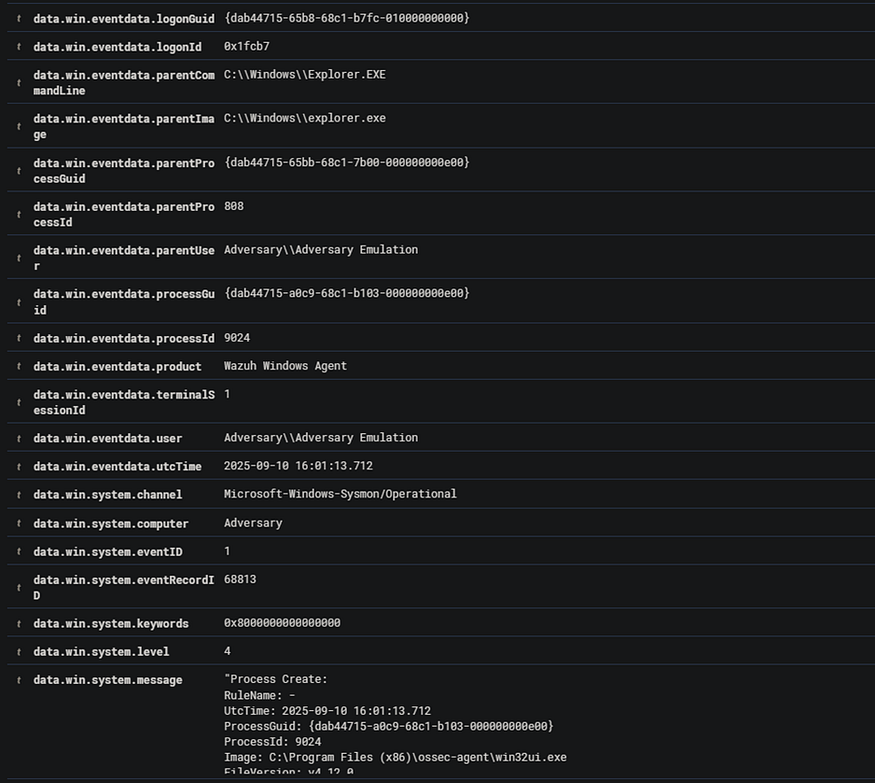
In my case, I am basing my visualization on Sysmon events, so in order to know which filter to use, I need to know the details of a given event. In the details of various events (not only Sysmon), you have attributes and values. Below is a screenshot showing the details of one of the Sysmon events.
As I mentioned earlier, in this case I will base my first visualization solely on events generated by Sysmon software, so in the first step I use the following filter:
This filter should be placed in the “Filter 1” section. This is shown in the screenshots below.
After completing these steps, you can see that our table now contains a section with the applied filter and a numerical value. At this point, we only have information about how many Sysmon events have been generated in the last 24 hours from all hosts on which the Wazuh agent and Sysmon software have been implemented.
After completing these steps, you can see that our table now contains a section with an applied filter and a numerical value. At this point, we only have information about how many Sysmon events have been generated in the last 24 hours from all hosts on which the Wazuh agent and Sysmon software have been implemented.
In the next step, I will start adding more sections to the visualization so that the table contains the most important information about Sysmon events. Now I will add a section responsible for extracting the description of a given event, i.e., “rule.description.”
To do this, first click on “Add” → “Split rows.”
Then, in the “Sub.aggregation” section, find the “Terms” section and click on it.
Next, in the “Field” section, find the phrase “rule.description” and click on it.
Leave the values in the “Order By” and “Order” sections as default.
In the “Size” section, the higher the numerical value you enter, the better.
Namely, the Sysmon software generates a large number of different events. It all depends on how you have written your detection rules and Sysmon configuration (I will cover Sysmon configuration in a future article). In summary, the higher the value you enter in the “Size” section, the more events will be displayed in your table. In my case, I set the value to 300.
In the final step after applying these configurations, click on the “Update” button and the changes you have made should then be confirmed
The screenshots below show the entire configuration process.
After completing all the steps described above, note that the table has now expanded slightly and you can see a description of the event and the number of occurrences, i.e., how many times it was generated by a given detection rule.
Okay, we have already added a section with a description of the event, but in order to have as much relevant information as possible from a security perspective, we need to add more sections to our table. When analyzing Sysmon events and various security alerts, it is important to verify the process that was responsible for launching another process or software.
· By knowing which process launched another, analysts can:
· Distinguish normal vs. abnormal behavior — Understand whether execution fits expected workflows.
· Trace attacker activity — Reconstruct attack paths and techniques.
· Hunt persistence or lateral movement — See how malicious tools were executed.
In the next step, I will add a section to the table that will contain information about the parent process, i.e., the one responsible for starting/triggering another process in the operating system.
To add this section, follow the same steps as before. The only difference is that in the “Field” section, you must select the following field:
data.win.eventdata.parentImage
You can find out which specific field to use from the details of a given event. A very helpful aspect of creating various visualizations in Wazuh is a good knowledge of detailed information about event data. For example, if I am creating a visualization containing Sysmon events in this case, I should know the values that are in the Sysmon events. In the screenshot below, you can see a fragment containing the details of one of the Sysmon events. From this information, we can conclude that the cmd.exe process launched the ping.exe software.
After applying this field and confirming the changes, you will see that a column containing the so-called parent processes has appeared in the table.
The screenshot below shows how it should look.
In the next step, to gain a broader insight into the activity on end hosts, add a section that will contain information about the processes and software that was launched by the parent process. In this case, I will base it on the following field:
data.win.eventdata.image
Confirm the changes by clicking Update and verify that the processes or software triggered by the parent process appear in the table.
At this stage, we already have the following information:
· description of the event
· parent processes
· processes that were triggered by parent processes
This is already quite useful information, but we want to have as much relevant information as possible gathered in one place. In order to carry out the investigation process, it is also necessary to know which specific command launched the parent process and which command was executed by the child process (called by the parent process). This is very important information in the context of analyzing suspicious activity.
First of all, it shows the full context of execution — you can see not only which process was launched, but also what arguments/parameters were passed to it.
First, I will create a section that will contain information about the command with which the parent process was launched.
The methodology for creating this section will be very similar to the previous cases. The main difference will be the use of the following field from the “Terms” section:
data.win.eventdata.parentCommandLine
After confirming the changes you have made, verify that a column containing information about the commands used to trigger the parent processes has appeared in the table.
Now I will add a section that will contain information about commands that were executed by child processes. In this case, the creation methodology will be very similar to the previous cases, but the main difference will be extracting the following field from the “Terms” section:
data.win.eventdata.commandLine
After confirming the changes, verify that you can see information in the table about the commands that were called by child processes.
At this point, we already have a really solid visualization that shows us the following information:
· rule.description — gives quick context on what type of activity was detected (e.g., “Discovery activity executed”).
· parentImage + parentCommandLine — show which process was the parent and how it was launched.
· image + commandLine — show which process was launched and what its parameters were.
Finally, I will add to this information a section that will contain information about the name of the computer (hostname) on which the activity took place. This will certainly facilitate the process of analyzing these events, as the user will know on which specific host the activity took place.
The methodology for creating this section will also be very similar to the previous ones. The main difference will be based on the following field from the “Terms” section:
data.win.system.computer
In addition, you can reduce the value in the “Size” section if you want. In my homelab, I have Sysmon installed on only 5 hosts, so I set this value to 5. If you set it higher, nothing will happen. It is best to set a value corresponding to the number of hosts on which you have Sysmon installed.
After confirming the changes, verify that a column containing information about the names of the hosts (on which Sysmon software and the Wazuh agent have been implemented, of course) has been added to the table.
Finally, if you want, you can change the description in the “Filters” column. At the beginning, I applied a filter that filters only events generated by Sysmon software, but you can see that there is literally the filter that I applied.
To set your own description in this section, go to the place where this filter was created. Simply put, go to the very beginning of the visualization configuration. Click on the blue icon next to the red trash can icon.
In the “Filter 1 label” field, type, for example, “Sysmon Event” and click “Update.”
After completing these steps, you should see that the values in the “filters” column have changed.
Visualization summary
Finally, the visualization provides the following information:
Get Michuu1337’s stories in your inbox
Join Medium for free to get updates from this writer.Subscribe
· rule.description — event type (e.g., “Discovery activity executed,” “Process creation TCP/IP Ping Command”) — we immediately know whether it is recon, communication, or another technique.
· parentImage + parentCommandLine — show which process was the parent and with what parameters it was launched (e.g., cmd.exe with a clean command line).
· image + commandLine — indicate which process was launched and what exactly it did (e.g., ping -n 5 127.0.0.1, net localgroup administrators guest /ADD).
· computer — shows on which host this took place (in this case, “Adversary”).
Of course, you must keep in mind that this is only an example visualization. Its purpose was to show you and teach you the methodology of creating such and similar visualizations in the Wazuh SIEM system. In fact, we have a lot of different options to choose from when creating visualizations, so the methodology depends on your creativity and what information you would like to include in a given visualization.
Of course, you can further expand the created visualization by adding information about the Process ID and Parent Process ID (PID/PPID), which will be the following fields from the “Terms” section:
· data.win.eventdata.processId
· data.win.eventdata.parentProcessId
Additionally, you can also add the “timestamp” field to get accurate information about when the event occurred. This is also one of the most important fields when analyzing various security incidents.
Below is a screenshot showing the final appearance of the created visualization. There is a lot of data in this visualization, so the resolution will be poor. Zoom in on the image to better see the data contained in the screenshot below.
A very important aspect after creating a visualization is to save it. I will use the saved visualizations to create a Dashboard at a later stage.
To save the visualization, click on “Save” in the upper right corner.
Then give the visualization a title and, optionally, you can also give it a description.
It is also worth adding a description, as other users will have a better understanding of what is specifically included in a given visualization.
After adding a title and description for the visualization, click “Save.”
Once you have completed all the steps correctly, you will see the following output in the lower right corner of the screen:
You can view the created visualizations at any time. To do this, go to the “Explore → Visualize” section. There you will see the visualizations created so far. Later on, I will use these visualizations to create a Dashboard.
The methodology is that you first create visualizations that contain various data, and only later do you create a Dashboard from them.
Second visualization — TOP 10 Sysmon events
It’s time to create another visualization. This time, it will contain the TOP 10 events generated by the Sysmon software. What does this mean? The visualization will include a description of a given event (rule.description) along with the number of entries for that event, i.e., how many times the event was generated by a given detection rule.
This time, it will not be a tabular visualization, but a pie chart.
A pie chart is a circular data visualization where the whole circle represents 100% of the data and it is divided into slices, with each slice’s size proportional to the value it represents, making it useful for quickly showing the share of each category within a whole.
To create this visualization, go to the “Visualize” section and then click on “Create Visualization.”
You will see a variety of visualizations to choose from. Select the “Pie” visualization by clicking on it. Then select the “wazuh-alerts-*” index as the data source.
The first thing you will see in the visualization is a circle showing only the number of all events generated in the last 24 hours (by default).
At this point, it doesn’t tell us anything meaningful, so it’s time to start creating a visualization containing a set of the 10 most frequent Sysmon software events. Please note that these events will collectively apply to all hosts on which Sysmon software has been implemented.
In the first step, click on “Add” and then on “Split Slices.”
In this case, I will also base my analysis on Sysmon events, so the methodology will initially be identical to that used for the table I created earlier. First, from the “Aggregation” section, I select the term “Filters.”
Then, in the “Filters” section, I use the following filtering method, which you already know well from the previous visualization:
Using this filtering method will allow me to base my analysis solely on events generated by Sysmon software.
After completing these steps, click “Update” to confirm the configuration.
After completing these steps, you will see the number of Sysmon events generated in the last 24 hours (by default, depending on your timestamp settings). In the next step, I will add a configuration section that will be responsible for displaying the 10 most frequent events generated by the Sysmon software.
To do this, click on “Add” → “Split Slices” again.
Then, in the “Sub Aggregation” section, select the value “Terms.”
In the next step, in the “Field” section, select “rule.description.” Set the ‘Size’ value to 10, because in this case we are displaying the 10 most frequent Sysmon events. Leave the values in “Order by” and “Order” as default.
After completing all the steps listed above, click “Update” to confirm the changes.
The screenshot below shows what the configuration should look like.
After confirming the changes, note that the Pie Chart has expanded slightly and become more colorful. Let me explain what has happened here.
Namely, in the second circle, we have the TOP 10 events generated by the Sysmon software. On the right, you can see the legend. It shows the names of individual events. If you hover your cursor over a given entry in the legend, that value will be highlighted in the visualization.
In turn, in the inner circle, you can see the total number of events generated by Sysmon software during a given time period. By default, this is the last 24 hours.
In addition, when you hover your cursor over a given field on the Pie Chart, you will see what it specifically contains and what value it represents. In this case, you will see a description of the given Sysmon event and the number of times it was generated.
Visualization summary
This visualization was not very complicated to create and does not present such important information as the first one, created earlier, but my goal was to show you how you can create a completely different, sample visualization in a relatively simple and quick way. Pie chart visualizations are extremely useful in presenting various summaries of events collected by the SIEM system.
In this case, the visualization showed the TOP 10 events generated by the Sysmon software. You could also use pie charts to show the number of vulnerabilities detected in the installed software, broken down by severity. As I mentioned earlier, the example I presented is just one of many, but thanks to it, you now know how to create pie chart visualizations in the Wazuh SIEM system.
In the final step, click “Save” in the upper right corner to save the visualization you have created.
As with the first visualization, give it a title and description, then click “Save.” After a moment, you should see a message in the lower right corner of the screen indicating that the visualization has been created.
To make sure it has been created correctly, go to the “Visualize” section and see if it is there.
Creating a Dashboard
We have two visualizations created, so now is the perfect time to combine them into a whole, i.e., create a Dashboard that will contain them.
To create a Dashboard, go to the “Explore” → “Dashboards” section.
In my case, I don’t have any Dashboards created, so I see a message about creating my first Dashboard. Click on “Create new dashboard.”
After completing these steps, you will see the Dashboard creation panel.
To add the previously created visualizations, click on the phrase “Add an existing.”
The available visualizations will now be displayed. Simply click on the visualization you want to add to the Dashboard. First, I select “Sysmon Events,” which is a table containing relevant information about Sysmon events.
After completing these steps, you will see that the visualization has been added to the panel. You can expand, move, and minimize each visualization as you like.
To add another visualization, click “Add” in the upper right corner of the screen and select the visualization you want to add.
In my case, I add a second visualization, i.e., the TOP 10 most frequent Sysmon events.
My Dashboard looks like this (I have only included a fragment to ensure the best possible quality of the data presented).
Now it’s time to save the Dashboard you’ve created. To save the Dashboard, click “Save” in the upper right corner of the screen. As was the case when creating the visualization, give the Dashboard a name and, optionally, a description, and click “Save.”
Optionally, you can enable the “Store time with Dashboard” option.
The “Store time with dashboard” option in Wazuh (more specifically in Kibana, on which Wazuh dashboards are based) allows you to save the currently set time filter together with the dashboard.
What this means in practice?
· If you enable this option, the dashboard will always open with the same time range that was set at the time of saving (e.g., “last 24 hours” or a specific date range).
· If you do not enable this option, the dashboard will use the default or currently selected time range in the interface, which means that it may show different data depending on what was last set in the global filter.
· In short: this option is useful if you want the dashboard to always open in the same time context (e.g., when viewing historical incidents) instead of automatically jumping to the current time.
After saving the Dashboard, you will receive a message informing you that it has been created.
The Dashboard creation panel also includes several interesting options:
· Share
· Clone
· Reporting
In the Share section, you can share the created Dashboard with someone by creating a shortened URL. To do this, click on “Share” and then enable the ‘Snapshot’ and “Short URL” options. Finally, click on “Copy link.”
A useful option, for example, when you are creating a very similar Dashboard, or when you want to test certain things on an existing one, is to create a copy of the existing Dashboard. To do this, click on “Clone,” give the copy a name, and click on “Confirm Clone.” In the final step, verify that the copy has been created. Go to the “Explore” section → “Dashboards” and see if it is there.
In the “Reporting” section, you can quickly and easily generate the entire Dashboard in PDF or PNG format. In addition, you can set up recurring reports for this Dashboard. To do this, click on “Create report definition.”
Below is an example configuration that will generate a PDF report every day at 8:00 a.m. Wazuh based on the selected dashboard, with data covering the last 24 hours.
Finally, click on “Create” to accept the changes.
After creating the report definition, you will see that it appears in the “Reporting” section. This means that all steps have been completed correctly.
Summary
Creating personalized dashboards in Wazuh is essential because it allows security teams to focus on the data that truly matters for their environment. By customizing dashboards, analysts can highlight key security events, monitor critical hosts or processes, and visualize trends in a way that is easy to interpret during triage or incident response. Personalized dashboards reduce noise, speed up detection of abnormal behavior, and provide context for decision-making by correlating events, parent processes, and command lines in one view. This tailored visibility improves situational awareness, shortens investigation time, and ultimately strengthens the organization’s security posture.
In this article, I will show you how to easily and effectively integrate Sysmon software on both Windows and Linux with the Wazuh SIEM system.
What is Sysmon software?
Sysmon (System Monitor) is a Windows system service and device driver that, once installed, stays active across system reboots to monitor and log detailed system activity to the Windows event log. It captures information such as process creations, network connections, and file creation time changes, including details like command lines, process hashes, and parent-child process relationships.
By installing and configuring Sysmon software, you will gain much broader insight into various activities on end hosts (laptops, servers, PCs, etc.).
Unfortunately, Sysmon software will not be useful to us immediately after installation without any configuration. After installing Sysmon, you need to upload the appropriate config to it, while in Wazuh you need to prepare the appropriate detection rules that will be responsible for triggering alerts/security events. I will tell you more about this and show you how to configure it all later in this article. I won’t bore you with theory anymore, so let’s move on. to practice!
Installing and configuring Sysmon software — Windows 11
Important note: Before downloading the Wazuh agent installer (msi file), make sure you know which version of the agent you are downloading. At the time of writing, the latest version of Wazuh is 4.13.1.1. If you are using Wazuh version 4.12, for example, the latest Wazuh agent will not be compatible with your instance.
In this article, I will not show you step by step how to install the Wazuh agent. I assume that you already know how to do this. It is really quick and easy, don’t worry.
Sysmon software is part of the Microsoft SysInternals Suite. This suite includes a variety of diagnostic tools and tools that support the analysis of malware, logs, etc. It really is a great set of tools, and I recommend that you take some time to familiarize yourself with it!
After downloading the Sysmon archive, unzip it. For the purposes of this demo, I unzipped it in the Downloads folder. After unzipping Sysmon, you will see its executable files and EULA regulations, but something is missing here. Can you guess what it is? It is the file containing the Sysmon configuration.
A Sysmon configuration file is an XML file that defines which system events Sysmon should monitor and log, as well as how to filter or exclude certain events. It allows precise control over what activities like process creations, network connections, or file changes get recorded, helping to reduce noise and focus on relevant security events.
I have good news for you. You don’t have to write the configuration for Sysmon yourself. Of course, you can do it if you want, but first you need to learn the syntax of writing XML files and configurations for Sysmon. Fortunately, there are ready-made configuration files that have been created by professionals.
In my subjective opinion, the two best sources for downloading configurations for Sysmon are:
In this case, I will download the Sysmon configuration file — “Sysmon-Modular by Olaf Hartong.” As I mentioned, both sources are great, so which one you choose depends entirely on your individual preferences. You can always change or edit an existing config, but you should do so with caution.
In order to create a configuration file, you must first download the content containing the appropriate parameters, settings, rules, etc.
Go to the link provided above and copy all the content to Notepad. Save the file as config.xml and, importantly, select “All Files” in Windows. Place the saved file in the Sysmona directory.
You should get the following result:
Okay, now it’s time to finally install Sysmon. To do this, run the command prompt (cmd) with administrator privileges. Go to the directory where Sysmon is located and then list the directory to view its contents.
In the next step, use the following command to install the Sysmon software:
Sysmon64.exe -accepteula -i config.xml.
Finally, you should get the following result:
To verify and confirm that Sysmon has been installed correctly and is generating events, launch the Event Viewer application and navigate to the following path:
Application and Service Logs → Microsoft → Windows → Sysmon → Operational
If you have followed all the steps correctly and Sysmon has been installed correctly, you should see events generated by the Sysmon software in the Operational file. See the screenshot below for an example.
By clicking on each event, you will see its details in the window below.
You have already verified that Sysmon has been installed correctly. Now, the Wazuh agent software needs to “know” that it should monitor the path where Sysmon logs are stored and then redirect them to the Wazuh server.
To do this, log in to the Wazuh Dashboard.
Create a new configuration group called Sysmon. I’ll show you how to do this in a moment, but first, a little theory. I’ll explain what configuration groups are in Wazuh.
Wazuh agent groups are collections of agents that share a specific, unique configuration. They are created to simplify and centralize the management of multiple agents by allowing the Wazuh manager to push tailored configuration settings to groups of agents rather than managing each one individually. This helps ensure consistent security policies and easier updates across endpoints with similar roles or operating systems, improving efficiency in large environments.
Okay, now you know what configuration groups for agents are in Wazuh. Now I will move on to creating such a group. In the Wazuh Dashboard, go to Agent management → Groups.
Then click on “Add New Group” and name it “Sysmon.”
In the next step, edit the configuration group by clicking on the pen icon.
In the next step, edit the configuration group by clicking on the pen icon. Paste the configuration section below. It is responsible for indicating to the Wazuh agent the path I showed you earlier, which is where the events generated by the Sysmon software are stored. This allows the Wazuh agent to collect this data and redirect it to the Wazuh server. The server and Indexer process this data, and it will ultimately be displayed in Wazuh Dashboard.
Save the configuration by clicking the Save button.
In the next step, you need to add an agent or agents to this configuration group. Of course, you add the endpoints on which you want to monitor events generated by Sysmon.
To do this, click the “eye” icon and then go to the “Manage Agents” section.
You will see two sections. The section on the left contains a list of agents. Double-click on an agent name to add it to this configuration group. In my case, I am adding one agent named “SOC_Analyst.” After confirming the changes, click “Apply Changes.”
Now, when you click the back arrow, you will see that the agent has been successfully added to this configuration group. See the example in the screenshot below.
We are halfway there. Namely, we have added an agent to the Sysmon configuration group.
However, at this point, we have not yet implemented the appropriate detection rules that are responsible for generating individual events.
One of the best sources of detection rules for Sysmon and other software is SocFortress github. There you will find a large repository of various configurations and a variety of rules that may be useful to you.
Remember that these are ready-made configurations. You can always edit existing detection rules, delete them, or add new ones according to your preferences. Also, keep in mind that some detection rules can be “very noisy” and generate a large number of “False Positive” alerts, so you need to test them in your environment.
In my case, for the purposes of this article, I am using the rules for Sysmon created by SOC Fortress. You can manually copy the rules from GitHub and implement them into Wazuh, or if you want to have all the rule files uploaded to Wazuh right away, you can use the following command, which you will execute on the Wazuh server. However, before you run this script, make sure that you do not already have certain detection rules created. In Wazuh, each rule should have a unique ID. If there is a conflict between rule IDs and you have duplicate values, the Wazuh server will stop working. In summary, if you want to use this script directly on the Wazuh server, make sure you don’t have any previously created rules.
In the next step, make sure that the rules have been correctly uploaded to the Wazuh server. To do this, go to Server Management → Rules → Custom Rules → Manage Rules in the Wazuh Dashboard. You should see output similar to the screenshot below:
You can also verify this directly on the Wazuh server by running the following command: ll /var/ossec/etc/rules:
Once you have finished adding rules, verify that they are visible in the Wazuh Dashboard, in the Threat Hunting section. Go to this section by clicking on “Threat Intelligence” → “Threat Hunting.”
Then select the appropriate agent by clicking on “Explore Agent” in the upper right corner and select the appropriate one from the list.
In the next step, go to the Events section and use the following filtering method to display only Sysmon logs:
If you have followed all the steps correctly, you should be able to see the events generated by the Sysmon software. In this article, I show you how to properly integrate the Sysmon tool with Wazuh. I will not show you how to analyze these events, as this will be covered in a separate article to be published in the future.
INSTALLING AND CONFIGURING SYSMON — UBUNTU SERVER 24.04 LTS
You already know how to install Sysmon on Windows and integrate it with Wazuh. In this chapter, you will learn how to install Sysmon on Linux, specifically on Ubuntu Server 24.04 LTS. Of course, if you want, you can install Sysmon software on various Linux distributions such as Debian, Fedora, etc., but in this case, I will use Ubuntu Server for this purpose because I have tested Sysmon on it and know that it worked stably.
First, you need to install the Wazuh agent software on Ubuntu Server. I will not show this process in this article, but I am providing a link where you will find step-by-step instructions on how to install the Wazuh agent software.
If you have already installed the Wazuh agent correctly, let’s move on to installing Sysmon.
Below is a set of commands that you should paste into your Ubuntu Server terminal one by one. These commands are responsible for installing the necessary dependencies (which are needed to install Sysmon), and one of the commands simply installs Sysmon.
Once you have completed all of the above steps, Sysmon will be installed, but it will not yet have a configuration file. As you already know, as was the case with installing Sysmon on Windows, it needs a configuration file to work properly. Below are the steps for configuring this file for Sysmon for Linux.
In the first step, create a Sysmon configuration file using the following command: Of course, you can use a different editor if you want — for example, vi. However, legend has it that once you enter vi, you will never leave it.
nano /opt/config.xml
In the next step, paste the following content into the previously created file:
<Sysmon schemaversion=”4.70″>
<EventFiltering>
<! — Event ID 1 == ProcessCreate. Log all newly created processes →
<RuleGroup name=”” groupRelation=”or”>
<ProcessCreate onmatch=”exclude”/>
</RuleGroup>
<! — Event ID 3 == NetworkConnect Detected. Log all network connections →
<RuleGroup name=”” groupRelation=”or”>
<NetworkConnect onmatch=”exclude”/>
</RuleGroup>
<! — Event ID 5 == ProcessTerminate. Log all processes terminated →
<RuleGroup name=”” groupRelation=”or”>
<ProcessTerminate onmatch=”exclude”/>
</RuleGroup>
<! — Event ID 9 == RawAccessRead. Log all raw access read →
<RuleGroup name=”” groupRelation=”or”>
<RawAccessRead onmatch=”exclude”/>
</RuleGroup>
<! — Event ID 10 == ProcessAccess. Log all open process operations →
<RuleGroup name=”” groupRelation=”or”>
<ProcessAccess onmatch=”exclude”/>
</RuleGroup>
<! — Event ID 11 == FileCreate. Log every file creation →
<RuleGroup name=”” groupRelation=”or”>
<FileCreate onmatch=”exclude”/>
</RuleGroup>
<! — Event ID 23 == FileDelete. Log all files being deleted →
<RuleGroup name=”” groupRelation=”or”>
<FileDelete onmatch=”exclude”/>
</RuleGroup>
</EventFiltering>
</Sysmon>
Apply the configuration using the following command:
sysmon -accepteula -i /opt/config.xml
Finally, after completing all of the above commands, you should verify that the Sysmon service is working correctly and that event logs are being generated in real time. To do this, run the following commands to verify this.
1. Verification that Sysmon is working correctly.
systemctl status Sysmon
2. events are stored in the directory: /var/log/syslog. Use the following command to verify that events are being generated:
tail -f /var/log/syslog
If you see output like the one in the screenshot above, it means that Sysmon is working correctly and events are being generated.
Now perform a simple use case to confirm that Sysmon is working correctly.
Namely, create a file and edit it by writing some content in it. Then display the contents of the /var/log/syslog directory, filtering by the name of the previously created file. You should see events related to the creation of this file (Event ID 11).
Below is an example illustrating the methodology described above:
1. Creating a file and editing it
touch payload.txt
nano payload.txt
2. Display events generated by Sysmon with filtering of events related to the created payload.txt file.
cat /var/log/syslog | grep payload
Following the above steps has allowed you to confirm and ensure that Sysmon is working properly. In the next step, you need to implement detection rules for Sysmon in the Wazuh SIEM system and create a configuration group for agents so that Sysmon events are sent to the Wazuh server and finally displayed on the Dashboard.
In addition, it is very important to create appropriate decoders, or so-called parsers for Sysmon events. Simply put, decoders are specially crafted regular expressions designed to make log/event data “understandable” to the Wazuh server.
In the first step, I will start by creating a file with decoders and show you step by step how to do it. First, as proof that Sysmon events generated on Linux are not understandable to Wazuh, I will show you how to verify this.
First, go to Server Management → Decoders in the Wazuh Dashboard.
Then click on “Manage decoders files” and then on “Custom Decoders.”
Next, edit the “local_decoder.xml” file by clicking on the pencil icon and then clicking on “Decoders test.”
In the next step, paste the content of one of the events generated by Sysmon into the empty field in the Decoders Test section and click Test. You will not see any information in the window below. This means that at this point, Wazuh does not understand this syntax, specifically this event, so appropriate decoders must be written for these Sysmon events (parsers) must be written for these Sysmon events.
In the next step, I will show you how to create such a file with decoders. First, go to “Manage decoders files” → “Custom decoders.” Click on “Add new decoders file.”
Paste the following content into the file, give it a name with the .xml extension, and click on “Save.”
After completing these steps, run the decoder test again. Open the previously created file with decoders for Sysmon Linux events, paste a sample Sysmon event into the field, and click “Test.”
You should see output similar to the following:
If you have seen that the event has been correctly decoded by the decoders, you are halfway there! You still need to add a file with detection rules that will apply to Sysmon events for Linux. Now I will show you how to do it.
Go to “Server Management” → “Rules.”
Then, go to “Manage rules files” → “Custom rules” à “Add new rules file”.
Paste the following content into the rules file. Then name the file and click “Save.” (Remember to include the .xml extension in the name of the rules file.)
<group name=”linux,sysmon,”>
<rule id=”200150″ level=”3″>
<decoded_as>sysmon-linux</decoded_as>
<field name=”system.eventId”>\.+</field>
<group>sysmon_event1</group>
<description>Sysmon For Linux Event</description>
<mitre>
<id>T1204</id>
</mitre>
<options>no_full_log</options>
</rule>
<! — EventID = 1 →
<rule id=”200151″ level=”3″>
<if_sid>200150</if_sid>
<field name=”system.eventId”>¹$</field>
<description>Sysmon — Event 1: Process creation $(eventdata.image)</description>
<group>sysmon_event1</group>
<mitre>
<id>T1204</id>
</mitre>
<options>no_full_log</options>
</rule>
<! — EventID = 3 →
<rule id=”200152″ level=”3″>
<if_sid>200150</if_sid>
<field name=”system.eventId”>³$</field>
<description>Sysmon — Event 3: Network connection by $(eventdata.image)</description>
<group>sysmon_event3</group>
<mitre>
<id>T1043</id>
</mitre>
<options>no_full_log</options>
</rule>
<! — EventID = 5 →
<rule id=”200153″ level=”3″>
<if_sid>200150</if_sid>
<field name=”system.eventId”>⁵$</field>
<description>Sysmon — Event 5: Process terminated $(eventdata.image)</description>
<group>sysmon_event5</group>
<mitre>
<id>T1204</id>
</mitre>
<options>no_full_log</options>
</rule>
<! — EventID = 9 →
<rule id=”200154″ level=”3″>
<if_sid>200150</if_sid>
<field name=”system.eventId”>⁹$</field>
<description>Sysmon — Event 9: Raw Access Read by $(eventdata.image)</description>
<group>sysmon_event9</group>
<mitre>
<id>T1204</id>
</mitre>
<options>no_full_log</options>
</rule>
<! — EventID = 11 →
<rule id=”200155″ level=”3″>
<if_sid>200150</if_sid>
<field name=”system.eventId”>¹¹$</field>
<description>Sysmon — Event 11: FileCreate by $(eventdata.image)</description>
<group>sysmon_event_11</group>
<mitre>
<id>T1044</id>
</mitre>
<options>no_full_log</options>
</rule>
<! — EventID = 16 →
<rule id=”200156″ level=”3″>
<if_sid>200150</if_sid>
<field name=”system.eventId”>¹⁶$</field>
<description>Sysmon — Event 16: Sysmon config state changed $(Event.EventData.Data.Configuration)</description>
<group>sysmon_event_16</group>
<mitre>
<id>T1562</id>
</mitre>
<options>no_full_log</options>
</rule>
<! — EventID = 23 →
<rule id=”200157″ level=”3″>
<if_sid>200150</if_sid>
<field name=”system.eventId”>²³$</field>
<description>Sysmon — Event 23: FileDelete (A file delete was detected) by $(eventdata.image)</description>
<group>sysmon_event_23</group>
<mitre>
<id>T1107</id>
<id>T1485</id>
</mitre>
<options>no_full_log</options>
</rule>
<! — Overrides →
<! — EventID = 3. Discrad events if Image = /var/ossec/bin/wazuh-agentd or Image = /usr/sbin/zabbix_agentd →
<description>Sysmon — Event 23: FileDelete (A file delete was detected) by $(eventdata.image)</description>
<group>sysmon_event_23</group>
<mitre>
<id>T1107</id>
<id>T1485</id>
</mitre>
<options>no_full_log</options>
</rule>
</group>
After completing these steps, click on “Ruleset Test” inside the rules file. Paste the same event there that you previously pasted into “Decoders Test.” You should see output related to the alert being generated. This means that you have correctly written decoders and detection rules.
Almost done. The last step will be to add a configuration group for agents so that the Wazuh agent knows where to collect these events and redirect them to the Wazuh server. You already know how to do this for Windows. Here, the methodology will be very similar.
Go to the “Agents management” → “Groups” section.
Click on “Add new group”.
Give the group a name, for example “linux_sysmon” and save the group.
Edit the newly created group by clicking on the pencil icon and add the following configuration section to it. It tells the Wazuh agent which path to monitor and collect events from. As you may recall, Sysmon saves events to /var/log/syslog by default.
<localfile>
<log_format>syslog</log_format>
<location>/var/log/syslog</location>
</localfile>
Then save the group. In the next step, display the group details by clicking on the eye icon in the “Actions” section, then go to “Manage agents.”
From the section of available agents, select the agent (by double-clicking on it) that you want to add to this group, i.e., specifically the one from which you want to display Sysmon events, and click on “Apply changes.”
In the final step, go to the “Threat Hunting” section and select the agent you just added to the “linux_sysmon” group.
If you have followed all the steps correctly, you should see the events generated by the Sysmon software. Well done!!
SUMMARY
Installing, configuring, and integrating the Sysmon solution on both Windows and Linux operating systems will give you a much broader and more detailed insight into various activities on end hosts. Thanks to this integration, you can now monitor running processes, network connections, commands entered in the terminal, etc., which will contribute to a better monitoring process for your infrastructure.
As a Cyber Security enthusiast focused on real-world blue team operations, I wanted to go beyond theory and build a functional SOC lab from scratch — integrating Wazuh on a cloud server and monitoring a Windows VM running locally on VirtualBox. This project not only tested my technical skills, but also helped me understand how detection engineering and automation come together in a real SOC environment.
why wazuh:
Open Source
HIDS (Host Based Intrusion Detection System
Integrated with many compliances
Cost-Effective & Community-Driven
Automation & SOAR integration
Real-time event detection
Project Goals
Setup Wazuh on Cloud
Setup Shuffle
Creating automated Email for Security Analyst
Detecting malware and creating rule
Designing the Architecture
Before diving into installations, we need a clear architectural plan. Just like building a house, a solid blueprint avoids misconfigurations and helps each component work together smoothly.
Graph View
Lets Understand Data Flow from the Diagram
Window tiny 10: The journey begins at the endpoint. This will send Event to Wazuh Manager. These include process executions, network connections, script usage, and more.
Wazuh Manager: The manager receives raw logs and processes them using decoders and detection rules. When a rule match is found — such as unauthorized PowerShell usage or file execution from suspicious directories — Wazuh generates an alert with relevant metadata and context.
3. Shuffle (SOAR Platform)
Once an alert is received, Shuffle takes over and automates the response pipeline:
IOC Enrichment: IPs, domains, or hashes are queried against public threat intel sources like VirusTotal.
Case Creation: A case is automatically generated in TheHive, including enriched data, alert summary, and priority level.
Analyst Notification: An email with all the relevant details is sent to the SOC analyst for triage.
4. SOC Analyst:
The analyst receives the email alert and opens the corresponding case in TheHive.
They review the timeline, indicators, and contextual data to decide whether it’s a true positive, false positive, or something that requires further investigation.
5. Automated or Manual Response:
If remediation is necessary, the analyst initiates a response action. This may be automated or manually triggered:
Flow: SOC Analyst → Shuffle → Wazuh → Windows Client
The final action may include:
Quarantining a malicious file
Terminating a process
Blocking a malicious IP
Disabling a compromised user account
Tools Used:
Here’s what we’re working with in the lab setup:
Windows tiny 10: Host machine with Wazuh agent installed
Wazuh Manager: Collects logs and generates alerts
Shuffle: SOAR platform that automates actions
TheHive: Case management for alert investigations
Email: Alert delivery to SOC analyst
VirtualBox: For Setuping Window machine
Step-by-Step Implementation:
A. VirtualBox Setup (on Ubuntu):
Install VirtualBox on Ubuntu(You can follow official Page of VirtualBox for installing in window) :
sudo apt update && sudo apt install virtualbox -y
2. Download Windows ISO: You can install official window 10, if you have at least 8 GB RAM of free space, But I used Window tiny 10 , You can install from archive website.
Get Bit_Picker’s stories in your inbox
Join Medium for free to get updates from this writer.Subscribe
3. Create New VM in VirtualBox
Name : Window-SOC
RAM :2 GB or More
CPU : 1 or more
Storage: Default or at least 20 GB
4. Other things keep default
B. Windows VM Configuration (Endpoint/Agent):
Access Window : Access the machine from the Virtual Box by clicking on the option start
2. Download Sysmon and Config:
You can download Sysmon by searching on the google and then just visit on the official website and then donwload ,
3. Setup Config(Ensure both these are in the same directory):
.\Sysmon64.exe -accepteula -i sysmon-config.xml
C. Hosting VM on CLoud :
Create your account on Digital Ocean or any other cloud , where you can host your wazuh and thehive machine. (You can get 200 free credit if you have verified github student account and then just login with your github)
Authentication: Use SSH key (recommended) or a strong root password
Hostname: thehive
2. Access:
Access thehive server using ssh
Now first update and upgrade
sudo apt-get update && sudo apt-get upgrade -y
3. Follow the official setup guide:
As it is long process and following the official document can help you properly setup without an error and it contain up to date setup or you can follow the project by MyDFIR (SOC automation project).
Copy the command and then paste it into the window powershell by opening it as administrator
after a while the agent will install and then paste the following command
NET START WazuhSvc
The shuffle part you can follow along the video by MyDFIR , as it is really hard to show each and every steps , and also thehive is creating problem while setuping with suffle thats why I didn’t included in the blog,
if you have any problem while setup , you can comment .
Next blog ,we will cover some more cool stuff in the lab, that are not done in the videos by MyDFIR