Michuu1337Follow
21 min read
·
Sep 17, 2025
3
2
Prepared by: Michał Bednarczyk
Date: 15.09.2025

Introduction
The main role of a SIEM system is to collect as much information as possible (network logs, generated events, etc.) from various network devices and end hosts. In many cases, the amount of data collected in a SIEM system is truly enormous, and those responsible for analyzing this data, such as cybersecurity analysts, face a considerable challenge in extracting only the most relevant information from this vast amount of data.
How can this challenge be overcome and how can the process of analyzing the various data received be simplified and streamlined?
The answer is to create your own personalized dashboards, which will include a variety of visualizations that show only the information that is most important to you.
The Wazuh SIEM system allows you to create your own personalized visualizations, thanks to which you will see only the information that is most important to you from a cybersecurity perspective in one place. Creating your own dashboards will certainly make it easier for you to analyze and manage a wide variety of data.
This document will teach you how to create a variety of visualizations.
Importantly, these are only examples that I have prepared for you. In reality, human creativity knows no bounds, and there are many different ways you can create these visualizations. My goal is to show you how to create examples, and with this knowledge, you will be able to easily create your own visualizations. So let’s get to work!
Creating your own personalized visualizations
To create a visualization, first go to the Wazuh Dashboard.
Then, on the left side, open the so-called “hamburger menu” and go to the Explore → Visualize section. Next, click on “Create New Visualization.” After completing this step, you will see a variety of visualizations to choose from.


As you can see in the graphic below, you can choose from a variety of visualizations. The principle is that you first create visualizations and then use them to “build” a Dashboard that will include the various visualizations you have created. So, in the first stage, I will show you how to create various visualizations, and then I will build various analytical Dashboards from them.

First visualization — Sysmon events
The first visualization I will create will concern events generated by Sysmon (System Monitor) software.
Sysmon is a Windows system service and device driver from Microsoft’s Sysinternals suite. It runs in the background and logs detailed information about system activity into the Windows Event Log.
The Wazuh agent on the endpoint monitors the path where events generated by Sysmon software are located à Microsoft-Windows-Sysmon/Operational and then redirects this data to the Wazuh server, where it is finally displayed on the Wazuh Dashboard.
Okay, that’s enough technical stuff for now. Let’s start creating the visualization.
In the first step, click on the “Table” visualization. This will be a tabular visualization containing individual fields extracted from events generated by the Sysmon software.

In the next step, select the index you want to use as a basis. For this visualization, I will use the wazuh-alerts-* index, so I select it. Choosing the right index at this stage is very important, because later you will use the appropriate options and filters to extract the data you need from this index in the visualization creation process.

After completing this step, you will see only a field called “Count,” which contains the total number of events from the last 24 hours (by default) located in the wazuh-alerts-* index.
In the first section on the right, under “Buckets,” click on ‘Add’ → “Split rows.”

After completing the previous step, you will see an aggregation field where you can choose from various options. My goal in the first step will be to rely solely on events generated by the Sysmon software.
In order to start basing only on Sysmon events, I select the Filters section and in the next step I will filter only Sysmon events.

After completing the previous step, you will see an aggregation field where you can choose from various options. My goal in the first step will be to rely solely on events generated by the Sysmon software.
In order to start basing only on Sysmon events, I select the Filters section and in the next step I will filter only Sysmon events.
After selecting filter-based aggregation, I will now create a filter that will be responsible for basing only on Sysmon events.
When working with filters, it is very useful to know the details of the individual events you want to base your visualization on.
In my case, I am basing my visualization on Sysmon events, so in order to know which filter to use, I need to know the details of a given event. In the details of various events (not only Sysmon), you have attributes and values. Below is a screenshot showing the details of one of the Sysmon events.
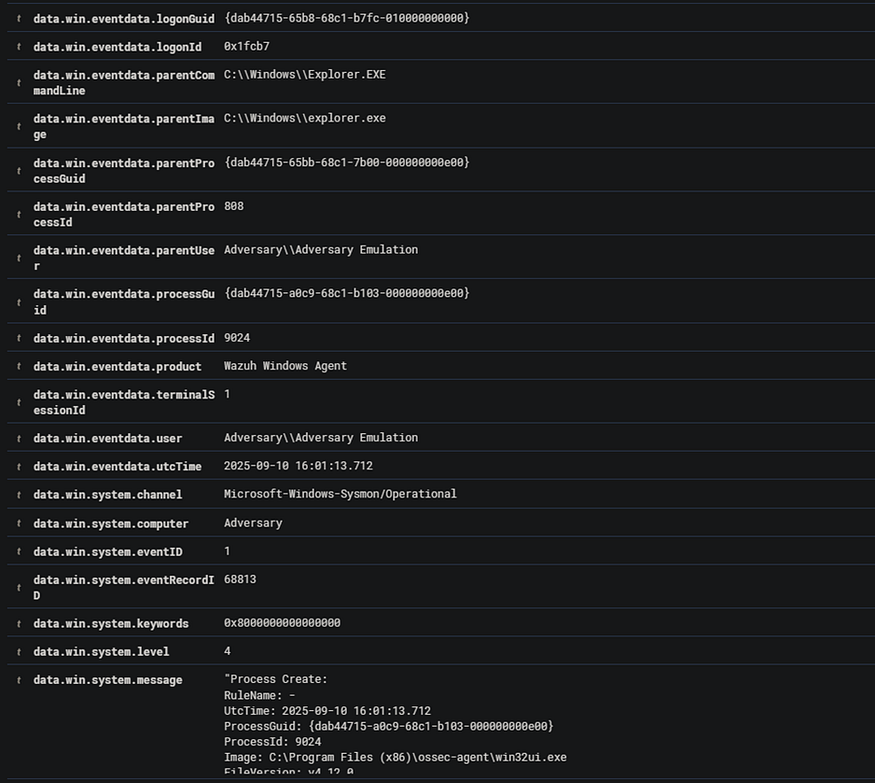
As I mentioned earlier, in this case I will base my first visualization solely on events generated by Sysmon software, so in the first step I use the following filter:
data.win.system.channel: Microsoft-Windows-Sysmon/Operational
Using this filter, I rely only on Sysmon events.
This filter should be placed in the “Filter 1” section. This is shown in the screenshots below.


After completing these steps, you can see that our table now contains a section with the applied filter and a numerical value. At this point, we only have information about how many Sysmon events have been generated in the last 24 hours from all hosts on which the Wazuh agent and Sysmon software have been implemented.
After completing these steps, you can see that our table now contains a section with an applied filter and a numerical value. At this point, we only have information about how many Sysmon events have been generated in the last 24 hours from all hosts on which the Wazuh agent and Sysmon software have been implemented.
In the next step, I will start adding more sections to the visualization so that the table contains the most important information about Sysmon events. Now I will add a section responsible for extracting the description of a given event, i.e., “rule.description.”
To do this, first click on “Add” → “Split rows.”
Then, in the “Sub.aggregation” section, find the “Terms” section and click on it.
Next, in the “Field” section, find the phrase “rule.description” and click on it.
Leave the values in the “Order By” and “Order” sections as default.
In the “Size” section, the higher the numerical value you enter, the better.
Namely, the Sysmon software generates a large number of different events. It all depends on how you have written your detection rules and Sysmon configuration (I will cover Sysmon configuration in a future article). In summary, the higher the value you enter in the “Size” section, the more events will be displayed in your table. In my case, I set the value to 300.
In the final step after applying these configurations, click on the “Update” button and the changes you have made should then be confirmed
The screenshots below show the entire configuration process.


After completing all the steps described above, note that the table has now expanded slightly and you can see a description of the event and the number of occurrences, i.e., how many times it was generated by a given detection rule.

Okay, we have already added a section with a description of the event, but in order to have as much relevant information as possible from a security perspective, we need to add more sections to our table. When analyzing Sysmon events and various security alerts, it is important to verify the process that was responsible for launching another process or software.
· By knowing which process launched another, analysts can:
· Detect malicious chains — Spot suspicious parent-child relationships (e.g., Word launching PowerShell).
· Distinguish normal vs. abnormal behavior — Understand whether execution fits expected workflows.
· Trace attacker activity — Reconstruct attack paths and techniques.
· Hunt persistence or lateral movement — See how malicious tools were executed.
In the next step, I will add a section to the table that will contain information about the parent process, i.e., the one responsible for starting/triggering another process in the operating system.
To add this section, follow the same steps as before. The only difference is that in the “Field” section, you must select the following field:
data.win.eventdata.parentImage
You can find out which specific field to use from the details of a given event. A very helpful aspect of creating various visualizations in Wazuh is a good knowledge of detailed information about event data. For example, if I am creating a visualization containing Sysmon events in this case, I should know the values that are in the Sysmon events. In the screenshot below, you can see a fragment containing the details of one of the Sysmon events. From this information, we can conclude that the cmd.exe process launched the ping.exe software.

After applying this field and confirming the changes, you will see that a column containing the so-called parent processes has appeared in the table.
The screenshot below shows how it should look.


In the next step, to gain a broader insight into the activity on end hosts, add a section that will contain information about the processes and software that was launched by the parent process. In this case, I will base it on the following field:
data.win.eventdata.image
Confirm the changes by clicking Update and verify that the processes or software triggered by the parent process appear in the table.


At this stage, we already have the following information:
· description of the event
· parent processes
· processes that were triggered by parent processes
This is already quite useful information, but we want to have as much relevant information as possible gathered in one place. In order to carry out the investigation process, it is also necessary to know which specific command launched the parent process and which command was executed by the child process (called by the parent process). This is very important information in the context of analyzing suspicious activity.
First of all, it shows the full context of execution — you can see not only which process was launched, but also what arguments/parameters were passed to it.
First, I will create a section that will contain information about the command with which the parent process was launched.
The methodology for creating this section will be very similar to the previous cases. The main difference will be the use of the following field from the “Terms” section:
data.win.eventdata.parentCommandLine
After confirming the changes you have made, verify that a column containing information about the commands used to trigger the parent processes has appeared in the table.


Now I will add a section that will contain information about commands that were executed by child processes. In this case, the creation methodology will be very similar to the previous cases, but the main difference will be extracting the following field from the “Terms” section:
data.win.eventdata.commandLine
After confirming the changes, verify that you can see information in the table about the commands that were called by child processes.


At this point, we already have a really solid visualization that shows us the following information:
· rule.description — gives quick context on what type of activity was detected (e.g., “Discovery activity executed”).
· parentImage + parentCommandLine — show which process was the parent and how it was launched.
· image + commandLine — show which process was launched and what its parameters were.
Finally, I will add to this information a section that will contain information about the name of the computer (hostname) on which the activity took place. This will certainly facilitate the process of analyzing these events, as the user will know on which specific host the activity took place.
The methodology for creating this section will also be very similar to the previous ones. The main difference will be based on the following field from the “Terms” section:
data.win.system.computer
In addition, you can reduce the value in the “Size” section if you want. In my homelab, I have Sysmon installed on only 5 hosts, so I set this value to 5. If you set it higher, nothing will happen. It is best to set a value corresponding to the number of hosts on which you have Sysmon installed.
After confirming the changes, verify that a column containing information about the names of the hosts (on which Sysmon software and the Wazuh agent have been implemented, of course) has been added to the table.


Finally, if you want, you can change the description in the “Filters” column. At the beginning, I applied a filter that filters only events generated by Sysmon software, but you can see that there is literally the filter that I applied.

To set your own description in this section, go to the place where this filter was created. Simply put, go to the very beginning of the visualization configuration. Click on the blue icon next to the red trash can icon.
In the “Filter 1 label” field, type, for example, “Sysmon Event” and click “Update.”
After completing these steps, you should see that the values in the “filters” column have changed.


Visualization summary
Finally, the visualization provides the following information:
Get Michuu1337’s stories in your inbox
Join Medium for free to get updates from this writer.Subscribe
· rule.description — event type (e.g., “Discovery activity executed,” “Process creation TCP/IP Ping Command”) — we immediately know whether it is recon, communication, or another technique.
· parentImage + parentCommandLine — show which process was the parent and with what parameters it was launched (e.g., cmd.exe with a clean command line).
· image + commandLine — indicate which process was launched and what exactly it did (e.g., ping -n 5 127.0.0.1, net localgroup administrators guest /ADD).
· computer — shows on which host this took place (in this case, “Adversary”).
Of course, you must keep in mind that this is only an example visualization. Its purpose was to show you and teach you the methodology of creating such and similar visualizations in the Wazuh SIEM system. In fact, we have a lot of different options to choose from when creating visualizations, so the methodology depends on your creativity and what information you would like to include in a given visualization.
Of course, you can further expand the created visualization by adding information about the Process ID and Parent Process ID (PID/PPID), which will be the following fields from the “Terms” section:
· data.win.eventdata.processId
· data.win.eventdata.parentProcessId
Additionally, you can also add the “timestamp” field to get accurate information about when the event occurred. This is also one of the most important fields when analyzing various security incidents.
Below is a screenshot showing the final appearance of the created visualization. There is a lot of data in this visualization, so the resolution will be poor. Zoom in on the image to better see the data contained in the screenshot below.

A very important aspect after creating a visualization is to save it. I will use the saved visualizations to create a Dashboard at a later stage.
To save the visualization, click on “Save” in the upper right corner.
Then give the visualization a title and, optionally, you can also give it a description.
It is also worth adding a description, as other users will have a better understanding of what is specifically included in a given visualization.
After adding a title and description for the visualization, click “Save.”


Once you have completed all the steps correctly, you will see the following output in the lower right corner of the screen:

You can view the created visualizations at any time. To do this, go to the “Explore → Visualize” section. There you will see the visualizations created so far. Later on, I will use these visualizations to create a Dashboard.
The methodology is that you first create visualizations that contain various data, and only later do you create a Dashboard from them.


Second visualization — TOP 10 Sysmon events
It’s time to create another visualization. This time, it will contain the TOP 10 events generated by the Sysmon software. What does this mean? The visualization will include a description of a given event (rule.description) along with the number of entries for that event, i.e., how many times the event was generated by a given detection rule.
This time, it will not be a tabular visualization, but a pie chart.
A pie chart is a circular data visualization where the whole circle represents 100% of the data and it is divided into slices, with each slice’s size proportional to the value it represents, making it useful for quickly showing the share of each category within a whole.
To create this visualization, go to the “Visualize” section and then click on “Create Visualization.”

You will see a variety of visualizations to choose from. Select the “Pie” visualization by clicking on it. Then select the “wazuh-alerts-*” index as the data source.


The first thing you will see in the visualization is a circle showing only the number of all events generated in the last 24 hours (by default).
At this point, it doesn’t tell us anything meaningful, so it’s time to start creating a visualization containing a set of the 10 most frequent Sysmon software events. Please note that these events will collectively apply to all hosts on which Sysmon software has been implemented.
In the first step, click on “Add” and then on “Split Slices.”

In this case, I will also base my analysis on Sysmon events, so the methodology will initially be identical to that used for the table I created earlier. First, from the “Aggregation” section, I select the term “Filters.”

Then, in the “Filters” section, I use the following filtering method, which you already know well from the previous visualization:
data.win.system.channel: Microsoft-Windows-Sysmon/Operational
Using this filtering method will allow me to base my analysis solely on events generated by Sysmon software.
After completing these steps, click “Update” to confirm the configuration.

After completing these steps, you will see the number of Sysmon events generated in the last 24 hours (by default, depending on your timestamp settings). In the next step, I will add a configuration section that will be responsible for displaying the 10 most frequent events generated by the Sysmon software.
To do this, click on “Add” → “Split Slices” again.
Then, in the “Sub Aggregation” section, select the value “Terms.”
In the next step, in the “Field” section, select “rule.description.” Set the ‘Size’ value to 10, because in this case we are displaying the 10 most frequent Sysmon events. Leave the values in “Order by” and “Order” as default.
After completing all the steps listed above, click “Update” to confirm the changes.
The screenshot below shows what the configuration should look like.

After confirming the changes, note that the Pie Chart has expanded slightly and become more colorful. Let me explain what has happened here.
Namely, in the second circle, we have the TOP 10 events generated by the Sysmon software. On the right, you can see the legend. It shows the names of individual events. If you hover your cursor over a given entry in the legend, that value will be highlighted in the visualization.
In turn, in the inner circle, you can see the total number of events generated by Sysmon software during a given time period. By default, this is the last 24 hours.
In addition, when you hover your cursor over a given field on the Pie Chart, you will see what it specifically contains and what value it represents. In this case, you will see a description of the given Sysmon event and the number of times it was generated.


Visualization summary
This visualization was not very complicated to create and does not present such important information as the first one, created earlier, but my goal was to show you how you can create a completely different, sample visualization in a relatively simple and quick way. Pie chart visualizations are extremely useful in presenting various summaries of events collected by the SIEM system.
In this case, the visualization showed the TOP 10 events generated by the Sysmon software. You could also use pie charts to show the number of vulnerabilities detected in the installed software, broken down by severity. As I mentioned earlier, the example I presented is just one of many, but thanks to it, you now know how to create pie chart visualizations in the Wazuh SIEM system.
In the final step, click “Save” in the upper right corner to save the visualization you have created.

As with the first visualization, give it a title and description, then click “Save.” After a moment, you should see a message in the lower right corner of the screen indicating that the visualization has been created.
To make sure it has been created correctly, go to the “Visualize” section and see if it is there.

Creating a Dashboard
We have two visualizations created, so now is the perfect time to combine them into a whole, i.e., create a Dashboard that will contain them.
To create a Dashboard, go to the “Explore” → “Dashboards” section.
In my case, I don’t have any Dashboards created, so I see a message about creating my first Dashboard. Click on “Create new dashboard.”


After completing these steps, you will see the Dashboard creation panel.
To add the previously created visualizations, click on the phrase “Add an existing.”

The available visualizations will now be displayed. Simply click on the visualization you want to add to the Dashboard. First, I select “Sysmon Events,” which is a table containing relevant information about Sysmon events.

After completing these steps, you will see that the visualization has been added to the panel. You can expand, move, and minimize each visualization as you like.
To add another visualization, click “Add” in the upper right corner of the screen and select the visualization you want to add.

In my case, I add a second visualization, i.e., the TOP 10 most frequent Sysmon events.
My Dashboard looks like this (I have only included a fragment to ensure the best possible quality of the data presented).

Now it’s time to save the Dashboard you’ve created. To save the Dashboard, click “Save” in the upper right corner of the screen. As was the case when creating the visualization, give the Dashboard a name and, optionally, a description, and click “Save.”
Optionally, you can enable the “Store time with Dashboard” option.
The “Store time with dashboard” option in Wazuh (more specifically in Kibana, on which Wazuh dashboards are based) allows you to save the currently set time filter together with the dashboard.
What this means in practice?
· If you enable this option, the dashboard will always open with the same time range that was set at the time of saving (e.g., “last 24 hours” or a specific date range).
· If you do not enable this option, the dashboard will use the default or currently selected time range in the interface, which means that it may show different data depending on what was last set in the global filter.
· In short: this option is useful if you want the dashboard to always open in the same time context (e.g., when viewing historical incidents) instead of automatically jumping to the current time.
After saving the Dashboard, you will receive a message informing you that it has been created.


The Dashboard creation panel also includes several interesting options:
· Share
· Clone
· Reporting
In the Share section, you can share the created Dashboard with someone by creating a shortened URL. To do this, click on “Share” and then enable the ‘Snapshot’ and “Short URL” options. Finally, click on “Copy link.”

A useful option, for example, when you are creating a very similar Dashboard, or when you want to test certain things on an existing one, is to create a copy of the existing Dashboard. To do this, click on “Clone,” give the copy a name, and click on “Confirm Clone.” In the final step, verify that the copy has been created. Go to the “Explore” section → “Dashboards” and see if it is there.


In the “Reporting” section, you can quickly and easily generate the entire Dashboard in PDF or PNG format. In addition, you can set up recurring reports for this Dashboard. To do this, click on “Create report definition.”
Below is an example configuration that will generate a PDF report every day at 8:00 a.m. Wazuh based on the selected dashboard, with data covering the last 24 hours.
Finally, click on “Create” to accept the changes.

After creating the report definition, you will see that it appears in the “Reporting” section. This means that all steps have been completed correctly.

Summary
Creating personalized dashboards in Wazuh is essential because it allows security teams to focus on the data that truly matters for their environment. By customizing dashboards, analysts can highlight key security events, monitor critical hosts or processes, and visualize trends in a way that is easy to interpret during triage or incident response. Personalized dashboards reduce noise, speed up detection of abnormal behavior, and provide context for decision-making by correlating events, parent processes, and command lines in one view. This tailored visibility improves situational awareness, shortens investigation time, and ultimately strengthens the organization’s security posture.
Wazuh Ambassadors Program: https://wazuh.com/ambassadors-program/?utm_source=ambassadors&utm_medium=referral&utm_campaign=ambassadors+program
Wazuh Webpage: https://wazuh.com/?utm_source=ambassadors&utm_medium=referral&utm_campaign=ambassadors+program
Contact me
If you have any questions, please contact me on LinkedIn.
My Linkedln Profile: https://www.linkedin.com/in/%F0%9F%9B%A1%EF%B8%8Fmicha%C5%82-bednarczyk-2580a6228/
Leave a Reply